
You land after a long flight, step off the plane, and reach for your phone to pull up directions to the taxi rank or message the hotel. Then you see it: no signal, and roaming charges you'd rather not think about. Finding a shop that sells a local SIM card means queuing while jet-lagged, hunting for a passport, and fumbling with a tiny ejector pin. An eSIM removes that whole errand. It lets you buy a data plan online, install it before you fly, and connect the moment you touch down. Here's what an eSIM is and how it works.
What is an eSIM Actually
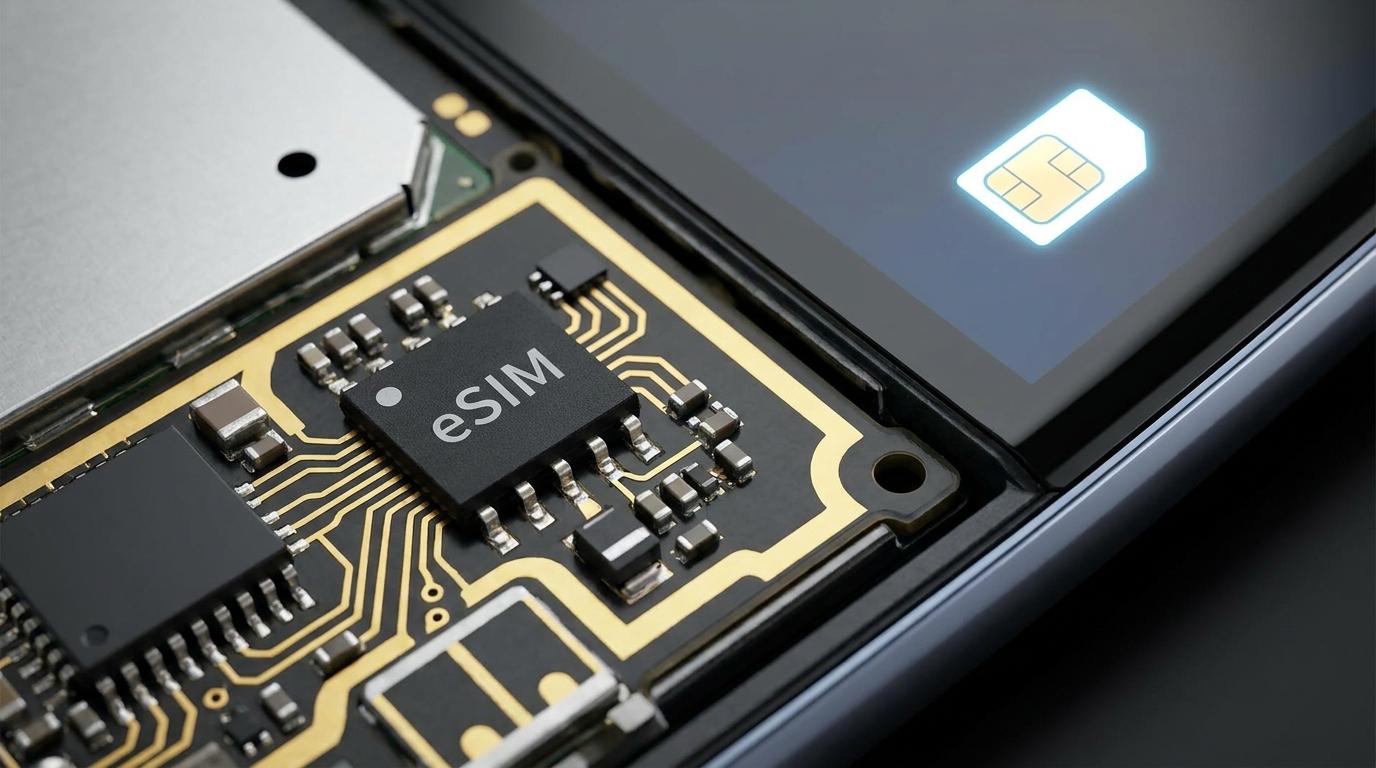
An eSIM is a small chip built directly into your phone that does the job of a physical SIM card without the plastic. The "e" stands for embedded, because the chip is soldered directly onto a phone's circuit board at the factory rather than slotted in by you. So the eSIM meaning is simple: it's a SIM you download instead of one you insert.
A traditional SIM card ships with one carrier's details already loaded onto it. An eSIM works the other way around. Where a physical SIM ships pre-loaded with a single carrier's data, an eSIM ships blank, and a carrier profile gets written to it later over the internet. That small difference is what makes an eSIM so useful for travel. You can hold several profiles on one chip and switch between them in your settings, so your home number and a travel data plan can live on the same phone at the same time.
Under the hood, the embedded chip is called an eUICC (embedded universal integrated circuit card). When you buy a plan, the carrier sends your phone a profile, and your device downloads and stores it. From there it behaves like any SIM: it connects to a mobile network, gives you data, and in many cases handles calls and texts too.
How an eSIM Works, Step by Step
Here's how an eSIM works in practice. You choose a plan from a provider, pay online, and receive either a QR code or an activation through the provider's app. Your phone downloads the carrier profile over Wi-Fi or your existing data connection, stores it on the embedded chip, and registers with the network. The whole process usually takes two to five minutes.
There are two common setup methods:
-
QR code: You receive a code by email, then open your phone's settings, choose to add an eSIM, and scan the code with your camera. The profile downloads automatically.
-
Provider app: Some sellers let you install and manage the plan inside their own app, which skips the QR code entirely.
Once the profile is installed, you pick it as your data line in settings and you're connected. Because the download happens over the internet, you can complete most of this before you leave home, which matters more than it sounds. If you install and set up your plan in advance, you arrive with working data instead of standing in an airport searching for Wi-Fi to activate it.
One point worth stressing for anyone trying an eSIM for beginners: activating a profile is not the same as it going live. Many travel eSIMs start counting your validity period from the moment the plan connects to a network in your destination, not from the moment you install it. Check your provider's terms so you know whether installing early uses up any of your days.
Does Your Phone Support an eSIM?
Before you buy anything, confirm two things: that your phone supports eSIM, and that it's unlocked. Most recent phones qualify, but not all, and the details vary by model and by the country where you bought it.
Broadly, iPhone XS and all newer models, Samsung Galaxy S20 and newer plus select A-series, Google Pixel 4 and newer, and select global flagship models from Motorola, Xiaomi, Oppo, and Honor support eSIM. If you bought your phone in the last three or four years, it very likely has one. On the Samsung side, the Samsung eSIM models include the Galaxy S20 through S25 series, the Note 20 range, and the Z Fold and Z Flip foldables, though a few carrier-locked or regional variants ship with the feature switched off.
You can check in a few seconds:
-
iPhone: Open Settings, then General, then About, and look for an EID number. If it's there, your phone supports eSIM.
-
Android: Open Settings, then Network & Internet (or Connections), then SIMs or SIM manager, and look for an "Add eSIM" option.
There's a catch that trips people up. Some phones sold in China or certain Asian markets ship with the eSIM functionality disabled or removed entirely, even if the hardware supports it. Certain US and South Korean model variants have limits too, so always confirm your exact model rather than assuming.
The second requirement is just as important. A carrier-locked phone won't accept an eSIM from another provider. A carrier-locked phone will reject eSIM profiles from other providers, even if the hardware supports eSIM. If you're not sure whether yours is locked, contact your home carrier and ask them to unlock it. Most carriers will unlock your device for free once your contract is complete or the device is paid off.
eSIM vs Physical SIM vs Roaming
Travelers usually weigh three ways to stay connected abroad. Each has a clear best use.
|
Option |
Main advantage |
Main drawback |
Best for |
|
Travel eSIM |
Buy and install online before you fly; keep your home number active |
Requires a compatible, unlocked phone |
Most travelers with a recent phone who want data on arrival |
|
Local physical SIM |
Often the cheapest local rates, sometimes with a local number |
Means finding a shop abroad and swapping cards; you may lose your home SIM slot |
Longer stays where a local number helps |
|
Home carrier roaming |
Nothing to set up; your existing number just works |
Usually the most expensive option by far |
Very short trips or emergencies where cost is not the concern |
The standout benefit of an eSIM is that you don't have to choose between your home number and affordable data. Your regular SIM stays in the phone for calls and texts on your usual number, while the eSIM handles cheaper data in your destination. To avoid surprise roaming charges, turn off data roaming on your home line and set the eSIM as your data source once you land.
How Much Data Do You Actually Need?
Most people overestimate this. The honest answer for a typical traveler is around 1GB per day, with lighter users closer to 0.5GB and heavy users easily exceeding 2GB. If you'll have Wi-Fi at your hotel each evening, you can often size down, since your data is mostly for getting around during the day.
The biggest surprise is how little navigation costs. On average, Google Maps uses about 3 MB to 5 MB of data per hour for basic navigation because it downloads simple lines and text rather than heavy images. Messaging apps sip data too. What burns through a plan is streaming video and long video calls, so save those for Wi-Fi if your plan is small.
A practical habit before you fly: download offline maps of your destination while you're still on home Wi-Fi. Google Maps lets you save regions for up to 30 days, which can cut your maps data use dramatically and give you directions even if activation is delayed.
What to Do Before You Leave and After You Land
A little preparation makes arrival smooth. Before departure, confirm your phone is compatible and unlocked, buy your plan, and install the eSIM profile at home. Download offline maps and any translation or transport apps you expect to use. Turn off data roaming on your home SIM so it can't quietly rack up charges.
After you land, the sequence is short. Switch your data line to the eSIM in settings, toggle data roaming on for the eSIM only if your provider requires it, and give the phone a moment to register with a local network. Reliable data at this point is what lets you get airport directions, open maps, contact your accommodation, and book a ride. If you've already arranged how you'll get from the airport to your hotel through a service like Transpovia, working data means you can confirm the pickup, track it, and message the driver without scrambling for Wi-Fi.
If your eSIM doesn't connect right away, don't panic. Restart the phone, confirm the eSIM is selected for data, and check that data roaming is enabled for that line. Most activation problems come down to one of those three settings. It also helps to sort your transport in advance, since planning airport transfers with Transpovia before you fly means one less thing to arrange while you're standing in an arrivals hall with a dead map.
FAQs
Can you keep your home SIM active while using an eSIM?
Yes. Most recent phones support dual SIM, so you can keep your home SIM in the phone for calls and texts on your usual number while the eSIM handles data in your destination. Just set the eSIM as your data line and keep roaming switched off on the home SIM.
Can an eSIM make calls, or is it data only?
It depends on the plan. Many travel eSIMs are data-only, which is fine if you use WhatsApp, iMessage, or similar apps for calls and texts over data. Some plans include a local number with calling and SMS. Check what the plan covers before you buy.
What happens if you install an eSIM but it doesn't activate?
Usually a setting needs adjusting rather than the eSIM being faulty. Restart your phone, make sure the eSIM is selected as your data line, and confirm data roaming is enabled for that profile. If it still won't connect, your provider can resend the profile or help you reinstall it.
Can you use your phone as a hotspot with an eSIM?
Often yes, though it varies by provider and plan. Tethering shares your eSIM data with a laptop or tablet, but it can use data quickly, so confirm your plan allows hotspot use and keep an eye on your remaining balance.
Before You Travel
Do three things before you fly: confirm your phone supports eSIM and is unlocked, install your plan while you're on home Wi-Fi, and download offline maps of where you're headed. Arrange your airport transfer with Transpovia in advance too, so you land ready to move instead of ready to troubleshoot.
"The best travel connection is the one you set up before you leave, so the phone just works the second you land and you never think about it again."


