
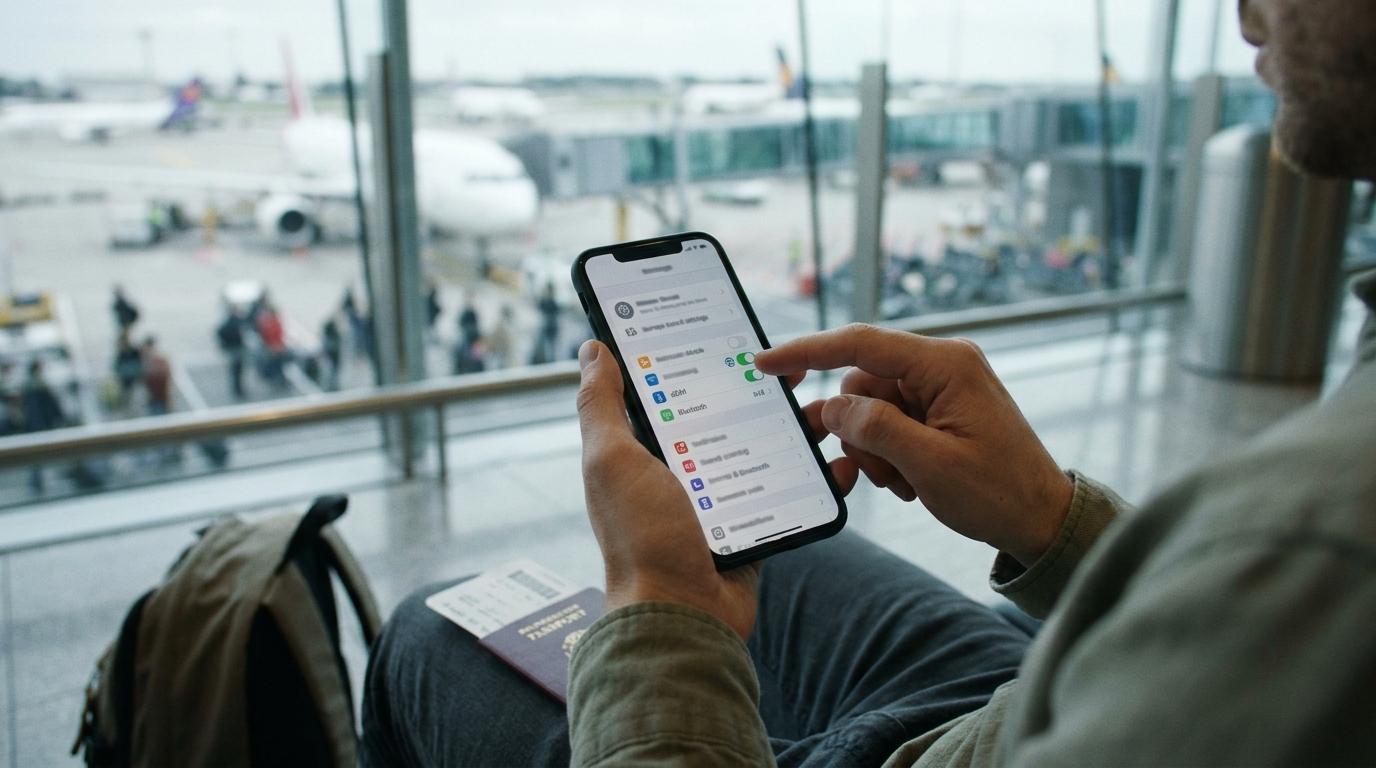
You land, switch off airplane mode, and your new eSIM shows a signal, yet nothing loads. Maps spins. Messages won't send. In most cases the fix is one switch: data roaming. If you're trying to figure out how to turn on data roaming eSIM settings without accidentally running up charges on your regular phone plan, the answer comes down to which line you turn it on for. Roaming goes on for the travel eSIM and stays off for your home SIM. This guide walks through exactly where those settings live on iPhone and Android, when to flip them, and what to check if the eSIM still refuses to connect.
Why a Travel eSIM Needs Data Roaming Turned On
Most travel eSIMs are issued by a carrier based in one country and connect to partner networks in the places you visit. From your phone's point of view, that means you're roaming, even though you're using a plan built for travel. If Data Roaming is off for that line, the phone will happily register on the local network and then block mobile data. That's the classic "bars but no internet" situation.
Turning on data roaming for the eSIM doesn't work like roaming on your home plan. With a prepaid travel plan, you've already paid for a set amount of data. When it runs out, the data simply stops until you top up or buy a new plan, if your provider offers that. There's no per-megabyte bill waiting for you at home. The exception is an eSIM from your own home carrier, which follows that carrier's international roaming rules instead.
It also helps to separate three stages that often get blurred together. Installing the eSIM adds the profile to your phone. Activating it means the plan is ready to connect, which for many travel plans only happens once you're in a covered country. Actually having mobile service requires the line to be switched on, selected for mobile data, allowed to roam, and connected to a supported network. If you haven't chosen a plan yet, a travel eSIM for your destination should list which countries it covers and whether it includes data only or also calls and texts, so check that before you buy.
How to Turn On Data Roaming eSIM Settings on iPhone
On an iPhone with both your regular SIM and a travel eSIM, each line has its own Data Roaming switch. That's useful, because it lets you allow roaming on one line and block it on the other. Depending on your region and iOS version, the menu may be labeled Cellular, Mobile Data, or Mobile Service.
-
Open Settings and tap Cellular.
-
Under SIMs, tap your travel eSIM. It may appear as Travel, Secondary, or whatever label you gave it during setup.
-
Make sure Turn On This Line is enabled.
-
Turn on Data Roaming. On some iOS versions it sits directly on this screen; on others, tap Cellular Data Options first.
-
Go back to the main Cellular screen, tap Cellular Data, and select your travel eSIM.
-
On that same screen, turn off Allow Cellular Data Switching so your iPhone doesn't quietly fall back to your home line when the eSIM signal drops.
-
Return to Cellular, tap your home line, and make sure Data Roaming is off.
If the travel eSIM is the only line on your iPhone, the path is shorter: Settings, Cellular, Cellular Data Options, then turn on Data Roaming.
How to Enable Data Roaming on an Android eSIM
Android phones put the same settings in different places depending on the manufacturer and software version. If you can't find a menu, open Settings and type "roaming" into the search bar.
Samsung Galaxy
Start in Settings, then Connections, then SIM manager. Confirm the travel eSIM is switched on, and set it as the SIM for mobile data. Next, go back to Connections, tap Mobile networks, and turn on Data roaming.
On many Galaxy models, Mobile networks shows a single Data roaming switch rather than one for each line. That makes the mobile data choice in SIM manager the setting that really matters: as long as the eSIM handles mobile data, your home SIM isn't the one using data abroad.
Google Pixel and Other Android Phones
On a Pixel, go to Settings, then Network & internet, then SIMs. Tap the travel eSIM, make sure Use SIM and Mobile data are on, and turn on Roaming. Then tap your home SIM and turn Roaming off for that line. Motorola, OnePlus, Xiaomi, and other brands usually follow a similar pattern under SIM or mobile network settings, although the exact labels vary.
Keep Your Home SIM From Running Up Roaming Charges
Most surprise bills come from the home line, not the travel eSIM. If your regular SIM stays on with roaming enabled, your phone can use it for data, and depending on your plan, your carrier may charge per megabyte or automatically add a daily international pass. Here's how the two lines should usually look while you're abroad:
|
Setting |
Travel eSIM |
Home SIM |
|
Line turned on |
On |
On if you want calls and texts to your regular number; off if you don't |
|
Data roaming |
On |
Off |
|
Selected for mobile data |
Yes |
No |
|
Automatic data switching |
Off |
Not applicable |
Keeping your home line on with data roaming off lets you receive texts, such as bank verification codes, on your usual number. Calls and texts on that line can still cost money abroad, though, depending on your carrier and plan. A quick check of your carrier's international rates before you leave is worth the few minutes.
When to Switch Data Roaming On
The easiest approach is to install the eSIM at home, on reliable Wi-Fi, a day or two before your trip. Installation usually needs an internet connection, and doing it at the airport gate is a recipe for stress.
What you do after installing depends on the plan. Many travel eSIMs start their validity period when they first connect to a supported network in your destination, but some start counting from installation or purchase. Check the plan details so you don't burn days of a 7-day plan before you leave.
Once you land, switch off airplane mode, confirm the eSIM is your mobile data line, and make sure data roaming is on for it. It can take a minute or two to register on a local network. If your route includes a layover in another country, remember that a single-country plan won't work there, so either rely on airport Wi-Fi or choose a regional plan that covers both stops.
Data Roaming Is On but the eSIM Still Won't Connect
If the settings look right and you still have no data, work through these checks in order. Most connection problems clear up by the third or fourth step.
-
Confirm you're in a covered country and that your plan hasn't expired or run out of data. The eSIM provider's app or account page usually shows remaining data.
-
Check the mobile data line again. A phone update or restart can sometimes switch it back to your home SIM.
-
Toggle airplane mode on for about 30 seconds, then off, to force the phone to search for networks again.
-
Restart your phone. It's basic, but it often fixes a profile that didn't load properly.
-
Choose a network manually. Your provider usually lists its partner networks for each country. On iPhone, go to the eSIM line in Cellular settings and open Network Selection. On Android, look for Network operators under mobile network settings, turn off automatic selection, and pick a listed network.
-
Check the APN. Some eSIMs need an Access Point Name entered manually. If your provider's instructions include an APN, compare it with what's in your mobile network settings.
One warning: don't delete the eSIM while troubleshooting. Many travel eSIMs can only be installed once, and deleting the profile may mean losing the plan. If nothing on this list works, contact the provider's support team with your phone model and the country you're in.
Frequently Asked Questions
Will turning on data roaming for my eSIM lead to extra charges?
Not on a prepaid travel eSIM. Roaming is how the plan connects abroad, and your usage comes out of the data you've already bought. Extra charges typically come from your home SIM if it's allowed to roam, or from an eSIM issued by your home carrier, which follows that carrier's international pricing.
Can I keep receiving texts on my regular number while using an eSIM for data?
Yes. Keep your home line turned on with data roaming off, and set the travel eSIM as your mobile data line. Texts and calls can still reach your regular number, although your carrier may charge for them abroad. Messaging apps like WhatsApp and iMessage will run over the eSIM's data.
Should I change these settings when I get home?
Yes. Switch mobile data back to your home SIM and turn off the travel eSIM line. If the plan has expired and can't be topped up, you can remove it. Also check that your home line's data roaming setting matches what your carrier recommends, since some carriers use partner networks in certain areas of your home country.
Conclusion
The whole process comes down to one rule: data roaming on for the travel eSIM, off for your home SIM, with the eSIM selected as your mobile data line. Get those three settings right and you'll usually be online within minutes of landing.
Install early, read the plan's validity terms, and save the troubleshooting steps above somewhere you can find them offline. Then the first thing you do on arrival is book a ride or message home, not dig through settings menus at baggage claim.
"I'd installed everything at home and still had no signal when I landed. One switch for data roaming and my maps loaded before I even reached passport control."


