
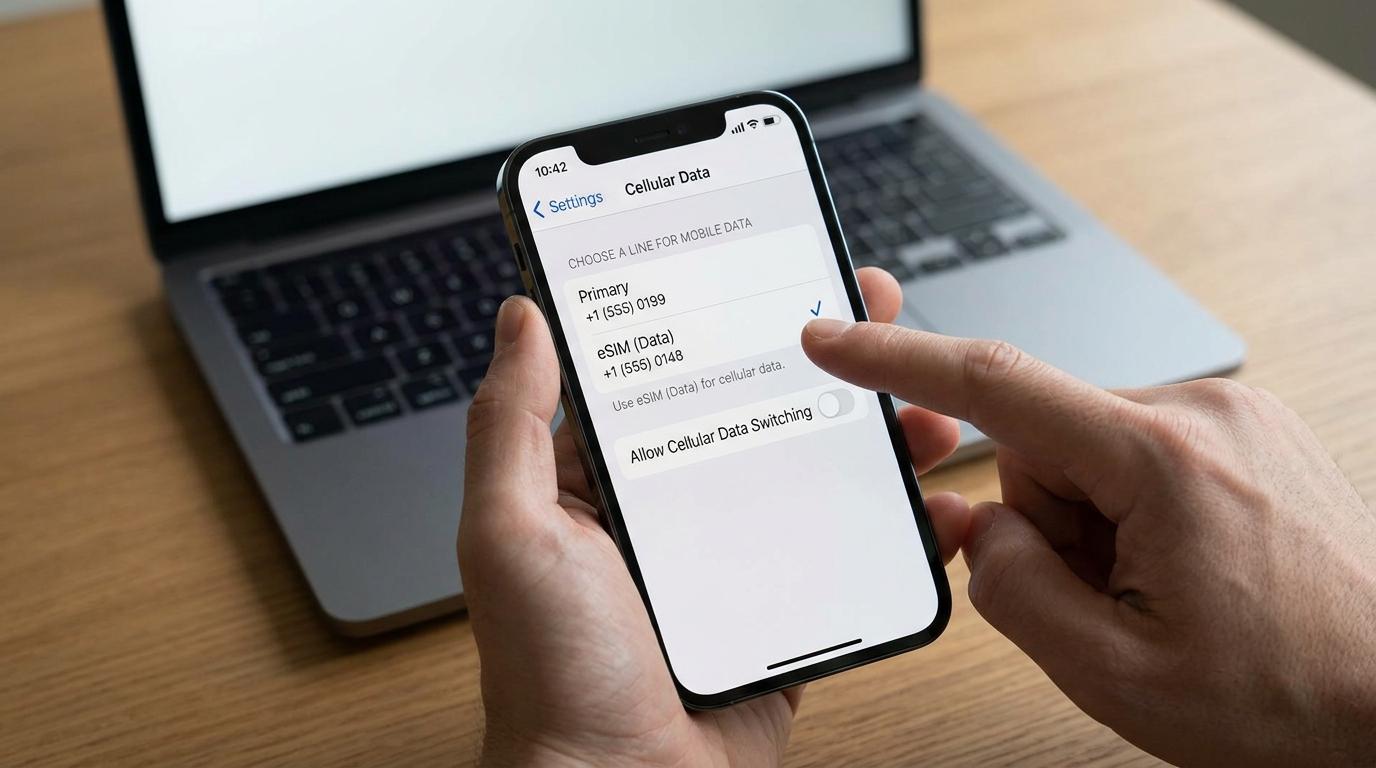
You've installed a travel eSIM, landed, and turned off Wi-Fi, but your phone is still trying to pull data from your home carrier. Or maybe it shows no internet at all. In most cases, the eSIM is fine. Your phone just hasn't been told which line to use for data. Learning how to set default line eSIM settings fixes this. It takes about a minute on both iPhone and Android, and it decides whether your trip runs on a prepaid data plan or on your home carrier's roaming rates.
This guide explains what the default line actually controls, how to set your eSIM for mobile data on each type of phone, and which related settings travelers usually miss.
What the Default Line Actually Controls
On a dual SIM phone, "default line" can mean two different things, and mixing them up is where most confusion starts.
The default data line (called Cellular Data on iPhone and Mobile data on Android) is the line your phone uses for internet when you're not on Wi-Fi. Maps, messaging apps, email, ride-hailing apps, and browsing all run through it. Your phone sends data over one line at a time, so whichever line you choose here is the one your data comes from.
The default voice line is the number your phone uses when you start a new call or send a standard SMS. It has nothing to do with where your internet comes from.
For most travelers, the ideal setup splits these two. The travel eSIM handles data, and the home SIM stays the voice line so people can still reach your regular number. On iPhone, Personal Hotspot also uses whichever line is set for cellular data. If you share your connection with a laptop or tablet, that data comes from your eSIM too, provided the plan allows tethering.
Before You Change Anything: Quick Checks
Setting a default line only works if the eSIM is ready to carry data. Confirm these first.
The eSIM is installed and turned on. An eSIM can be installed and still switched off. On iPhone, go to Settings > Cellular, tap the eSIM line, and make sure "Turn On This Line" is enabled. On Android, check that the eSIM is toggled on in your SIM settings.
Your phone supports dual SIM use. To keep your home line active alongside a travel eSIM, your phone needs to support two lines at once. iPhone XS and later support a physical SIM plus an eSIM, and iPhone 13 and later can also run two eSIMs. On Android, support depends on the exact model and sometimes on the region it was sold in.
Your phone is unlocked. A carrier-locked phone may refuse to use another provider's eSIM, even if the installation appears to work.
If you haven't bought or installed your eSIM yet, start with a travel eSIM setup before your trip. Installation usually needs a Wi-Fi connection, so it's easier to do at home than at an airport gate.
Step-by-Step: Set Default Line eSIM on iPhone
Apple keeps these options together under Cellular settings. Some regions label the menu "Mobile Data" instead of "Cellular," but the steps are the same.
Choose the eSIM for Cellular Data
-
Open Settings and tap Cellular.
-
Tap Cellular Data.
-
Select your travel eSIM line.
Your iPhone switches data to that line almost immediately. The status bar shows signal for both lines, and the line carrying data displays the network type (such as 4G or 5G) next to it.
Give your lines clear labels so this screen is easy to read. Tap a line under Cellular, then tap Cellular Plan Label and choose a preset like "Travel" or "Primary," or type your own. Picking "Travel" over "Secondary" saves a lot of guessing later.
Set Your Default Voice Line
Back on the Cellular screen, tap Default Voice Line and pick your home number if you want outgoing calls and texts to keep coming from it. If your travel eSIM is data-only, it has no phone number, so it can't be your voice line anyway.
Decide on Allow Cellular Data Switching
Below the line list on the Cellular Data screen is a toggle called Allow Cellular Data Switching. When it's on, your iPhone can use data from either line depending on coverage and availability. It also keeps data working during a call on your non-data line.
For international travel, leaving it off is usually the safer choice. You chose the eSIM specifically to avoid roaming on your home line, and you don't want your phone quietly falling back to it. Apple notes that this switching feature doesn't work while you're using Data Roaming, so it offers little benefit abroad.
How to Set eSIM for Mobile Data on Android
Android menus vary by manufacturer and software version, so the wording on your phone may differ slightly. The setting is always in the same general area: the SIM or network section of Settings.
Samsung Galaxy
-
Open Settings and tap Connections.
-
Tap SIM manager (called "SIM card manager" on older One UI versions).
-
Under preferred SIM settings, tap Mobile data and choose your eSIM.
The same screen lets you set separate defaults for Calls and Text messages, so you can keep those on your home number. Look for an option called Auto data switching and turn it off while traveling so the phone doesn't fall back to your home line when the eSIM signal drops.
Google Pixel
-
Open Settings and tap Network & internet.
-
Tap SIMs and select your travel eSIM.
-
Turn on Mobile data for that SIM.
Pixel phones use one SIM for data at a time, so turning mobile data on for the eSIM switches it off on the other line. Check the same menu for an automatic data switching option and disable it if you want data to stay on the eSIM.
Other Android Phones
On Motorola, OnePlus, Xiaomi, and others, search your Settings app for "SIM" or "Mobile data." You're looking for a screen with a preferred or default SIM for data. If the setting is hard to find, the Settings search bar is usually faster than browsing menus.
Turn On Data Roaming for the Right Line
This is the step most people miss. Many travel eSIMs connect through partner networks in the destination country, so your phone treats the connection as roaming. If Data Roaming is off for the eSIM, you may see full signal bars with no working internet.
The goal is roaming on for the travel eSIM and off for your home line:
-
iPhone: Settings > Cellular > tap the eSIM line > turn on Data Roaming. Then tap your home line and make sure Data Roaming is off.
-
Samsung: Settings > Connections > Mobile networks > Data roaming. On dual SIM models, check which SIM the toggle applies to.
-
Pixel: Settings > Network & internet > SIMs > select the eSIM > Roaming.
Enabling roaming on the travel eSIM doesn't trigger extra charges from your home carrier. Those charges come from the home line, which is why its roaming toggle should stay off. Your eSIM provider's setup instructions will say whether roaming is required for their plan, so check them if you're unsure.
A Typical Traveler Setup at a Glance
Here's how the settings usually look for someone traveling with a data-only eSIM while keeping their regular number active:
|
Setting |
Home SIM |
Travel eSIM |
|
Line turned on |
Yes |
Yes |
|
Default for mobile data |
No |
Yes |
|
Default for calls and texts |
Yes |
Not applicable (no number) |
|
Data roaming |
Off |
On (if the provider requires it) |
|
Automatic data switching |
Off |
Off |
With this setup, you can still receive texts on your home number, including bank verification codes. Keep in mind that your home carrier may charge for calls or texts you send or receive abroad, depending on your plan. Messaging apps like WhatsApp and iMessage run over data, so they'll use your eSIM.
If your plan includes a local phone number for calls and texts, you can make the eSIM your default voice line as well. That setup makes sense for longer stays or when you need to call local businesses often.
When to Change Your Default SIM
The timing matters more than most guides admit. You can install the eSIM days before your trip, but some plans start their validity period as soon as they connect to a supported network. If you switch your default line before leaving home, the eSIM may not connect at all, or it may start counting down early, depending on how the provider activates plans.
A practical routine looks like this:
-
Before departure: Install the eSIM over Wi-Fi, label it, and leave it set as the non-default line. Turn off data roaming on your home line.
-
After landing: Make the eSIM your default data line, turn on its data roaming, and wait a minute or two for it to register with a local network.
-
When you return: Switch mobile data back to your home SIM. You can delete the eSIM once the plan expires, or keep it if your provider supports top-ups for a future trip.
Forgetting step three is common. If your home line seems to have no data after you get back, the eSIM is probably still set as the default data line.
Troubleshooting: Mobile Data Isn't Working After You Change the Default SIM
If you've switched to the eSIM and still can't load anything, work through these checks in order.
Data roaming is off on the eSIM. This is the most frequent cause, especially when the phone shows signal bars but no data.
The phone hasn't registered on a network yet. Turn Airplane Mode on for about 15 seconds, then turn it off. This forces the phone to search for networks again.
The wrong network was selected. If network selection is set to manual from a previous trip, switch it back to automatic. On iPhone, this is under the eSIM line's settings in Network Selection.
The APN is missing. Some eSIMs need an Access Point Name entered by hand. If your provider listed APN details in the setup instructions, add them under the eSIM's Cellular Data Network settings on iPhone or Access Point Names on Android.
The plan hasn't started or has expired. Check your provider's app or account page to confirm the plan is active and has data remaining.
There's no coverage where you are. Travel eSIMs depend on partner networks, and coverage can be thin in rural or remote areas. Try again once you're somewhere more central.
If none of these help, restart the phone and contact your eSIM provider with your phone model and a screenshot of your cellular settings. That speeds up support considerably.
Frequently Asked Questions
Will I still get texts on my home number if I set eSIM as primary line for data?
Yes, as long as your home line stays turned on. Changing the default data line only moves where your internet comes from. Your home number can still receive calls and SMS, including one-time passcodes. Your home carrier may charge for these while you're abroad, so check your plan's international terms before you go.
Can I use data from both lines at the same time?
No. Dual SIM phones send data over one line at a time. iPhone's Allow Cellular Data Switching and Android's automatic data switching let the phone move between lines based on coverage, but they don't combine the two connections. While traveling, it's usually better to keep data locked to the eSIM so you don't trigger roaming charges on your home line.
Why does my phone keep switching mobile data back to my physical SIM?
Usually, automatic data switching is turned on, so the phone falls back to your home line when the eSIM signal weakens. Turn off Allow Cellular Data Switching on iPhone, or the auto data switching option on Android. If the setting resets after a restart, the eSIM may not be fully activated, so confirm the line is turned on and the plan is active.
Conclusion
Setting your default line comes down to one idea: data comes from the eSIM, calls and texts stay on your home number, and data roaming is switched on only for the line you're paying to use abroad. Once those three settings are correct, your phone behaves predictably, and you avoid surprise charges.
Take a minute after landing to check the Cellular or SIM manager screen and confirm everything is set the way you expect. When you get home, switch data back to your regular SIM so your normal service works again.
"I spent twenty minutes at baggage claim thinking my eSIM was broken. It turned out I just hadn't switched the data line over, and everything worked the second I did."


