
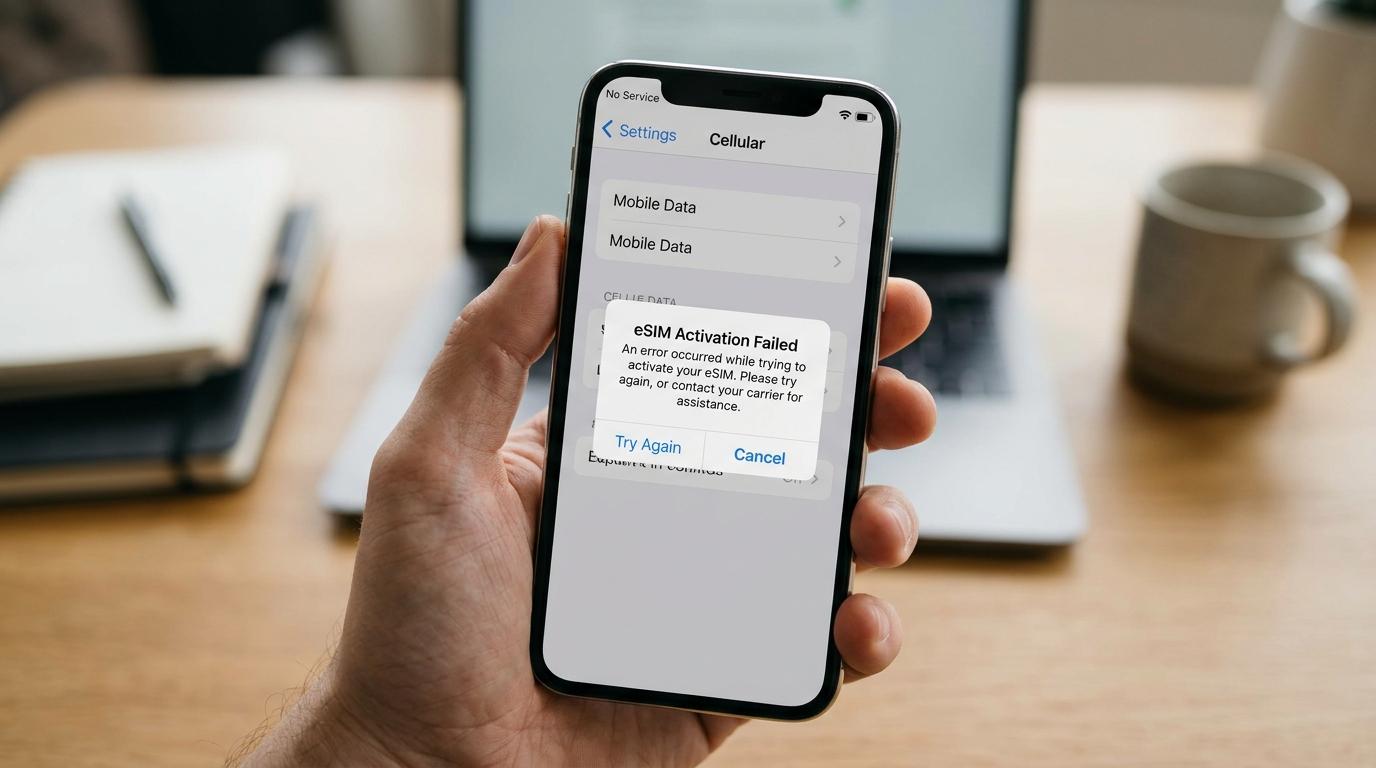
You scanned the QR code, tapped through every prompt, and your phone still shows a plan that is not active. When an eSIM won't activate, the cause is usually small, and the fix usually takes a few minutes. This guide explains why it happens, which fixes to try first, and when to stop troubleshooting and contact your provider. It covers iPhone and Android, with extra attention for travelers who are standing in an arrivals hall with a ride to find.
What it means when an eSIM won't activate
The word activation covers three separate moments, and the right fix depends on which one failed. Sorting this out first saves a lot of time.
In the first case, the eSIM never installs. The QR code will not scan, the phone says the plan cannot be added, or an error appears before any new line shows up in your settings. In the second case, the line appears and then stays on Activating, No Service, or a similar status. In the third case, the line shows signal bars and no web page loads, which points to a data setting and not to activation itself.
Behind the screen, your phone downloads a small profile over the internet, the profile registers with your provider, and then the phone searches for a partner network in the country where you are. A problem at any step looks almost the same on screen, and that makes a stuck eSIM feel mysterious. The order matters, and it tells you where to look when something goes wrong.
Quick fixes to try first
Start here. These steps solve most cases, and none of them can make the problem worse. Knowing the sequence also makes it much easier to activate your travel eSIM on the first try, because you stop guessing and start checking one thing at a time.
-
Connect to a stable WiFi network. The profile needs internet to download, and weak coverage is the most common reason an install stops halfway. Airport WiFi that asks you to accept terms on a login page can block the download. A hotel network or a hotspot on a friend's phone usually works better.
-
Restart the phone. A restart reloads the modem and the SIM manager, and it often clears an Activating status. Give the phone a few minutes after it turns back on before you judge the result.
-
Switch Airplane Mode on, wait about ten seconds, and switch it off. This forces the phone to search for a network again.
-
Check that the eSIM line is turned on. On iPhone, open Settings > Cellular and tap the plan. On Android, open the SIM manager in your connection settings, since the name changes by brand.
-
Turn on Data Roaming for the eSIM line only. Most travel eSIMs connect through roaming agreements, and the setting has to be on for that line.
-
Make the eSIM your mobile data line. If your home SIM keeps that role, you may see signal and still have no internet.
-
Update your phone software and restart once more.
Keep roaming and data switched off on your home SIM while you troubleshoot. That protects you against roaming charges on your regular plan, and it removes one common source of confusion about which line is carrying data.
If you bought your plan before the trip, work through steps 1 to 3 at home and the rest after you land. Most of the stress comes when people try to solve everything at the gate.
Common reasons an eSIM won't activate
You have not reached your destination
Many travel eSIMs finish activating only when the phone connects to a supported network in the country you bought the plan for. If you installed the plan at home, a status of Activating or Not Activated is normal. Follow your provider's instructions, which often say to keep the line switched off and turn it on after landing. Do not delete the plan out of worry. Some profiles cannot be installed a second time, and a deleted plan can turn a small delay into a replacement request.
The internet connection dropped during setup
An install needs a steady connection for a minute or two. If the connection changes in the middle, for example when the phone jumps between WiFi and mobile data, the download can fail and leave a half finished profile. Stay on one network, keep the screen awake, and try again.
Your phone is locked to a carrier
Phones sold on payment plans are often tied to one carrier, and a locked phone may refuse a plan that comes with another provider. On iPhone, open Settings > General > About and look at the Carrier Lock line. It should say No SIM restrictions. On Android, try a physical SIM that belongs to a different carrier. If the phone accepts it, the phone is open to other networks. If it asks for a network code, contact the carrier that sold the phone and ask them to remove the lock before you travel, because that request can take days.
The QR code was already used
Most eSIM profiles install one time. If you scanned the code twice, or scanned it on a different phone and then tried again, the second attempt fails. The same thing happens after you delete a profile and try to add it back. The fix is a new code that your provider sends you. Scanning the old one again only repeats the error and makes the case harder to trace.
The data line or roaming setting is wrong
This one fools many people. The eSIM installs, the status says Active, signal bars appear, and nothing loads. Open your cellular or SIM settings and check three things. The eSIM line is on, Data Roaming is on for that line, and mobile data is assigned to the eSIM and not to your home SIM.
Your software or carrier settings are out of date
Older software may miss support for newer profiles. Install any pending system update. On iPhone, carrier settings update through Settings > General > About, where a prompt appears if one is waiting. On many Android phones, an outdated Carrier Services app can interfere. Open Google Play and check for updates.
A VPN, a profile, or an old eSIM is in the way
A VPN or a management profile, often added by an employer, can interfere with setup. Turn off the VPN, and on iPhone review Settings > General > VPN & Device Management. Phones can store several eSIM profiles, and only a limited number can be active at the same time. An old plan you no longer need may be taking up a slot. Remove it only if you are certain you will never use it again.
Match the symptom to the likely fix
A few minutes of reading the signs can save an hour of random tapping. Here is how the most common symptoms usually play out.
If the phone says it cannot add the plan, think about the connection, the QR code, and the lock status first. Those three account for most install failures.
If the plan sits on Activating and you are still at home, nothing is wrong. Wait for landing. If you are already in the right country, check roaming, move to a spot with stronger signal, and toggle the line.
If the line shows a network name and bars with no internet, the activation worked. The problem is the data line, roaming, or an APN setting that did not load. Your provider can give you the right APN, and you enter it under the eSIM line's cellular data network settings.
If the line shows No Service and bars never appear, the phone has not registered on a partner network. Try choosing a network by hand, restart, and check that the plan covers the country you are in.
If the provider app marks the plan inactive or expired, no phone setting will fix it. That one needs your provider.
How to fix an eSIM that won't activate on iPhone
When you see Unable to Activate eSIM
The message says you can try again or contact your carrier, and it can appear even when the plan did install. Open Settings > Cellular and look for the new line. If it is there, make sure Turn On This Line is enabled and Data Roaming is on. If it is missing, reconnect to WiFi, restart the phone, and add the plan again with the QR code or with the manual details your provider gave you. Scan only the newest code.
When the plan is stuck on Activating
Move near a window or step outside, since a stronger signal helps the phone register. Turn the line off and back on, then switch Airplane Mode on and off. If nothing changes, go to Settings > General > Transfer or Reset iPhone > Reset > Reset Network Settings. This erases saved WiFi passwords and VPN settings, which means you should keep your passwords handy. Use it after the simpler steps fail.
How to fix an eSIM that won't activate on Android
Menu names vary between Samsung, Pixel, Xiaomi, and other brands. Use the search bar in Settings and type SIM manager or Mobile network.
Confirm that the eSIM toggle is on and that mobile data is set to that line. Turn on Data Roaming for the line. Next, open the network operator settings, switch off automatic selection, search for networks, and pick a local operator in the list. Some travel eSIMs connect only after a manual choice. If the first operator fails, try the next one.
If the profile did not install, choose the option to enter the activation code manually instead of scanning. Typing the address and code can work when the camera scan fails. Copy the characters exactly, with no spaces at the start or end.
If the problem remains, reset WiFi, mobile, and Bluetooth settings under System > Reset options. Saved WiFi passwords will be erased.
To check that your phone supports eSIM at all, open Settings > About phone and look for an EID number, or dial *#06# to see the device identifiers. If no EID appears, the phone may not support eSIM.
Moving an eSIM to a new phone
A new phone adds another way for activation to fail. Many profiles are tied to the first device, and some providers need to issue a fresh code for the second phone. Check the provider app or help page before you wipe the old phone. On some phones, a built in transfer option moves a plan between devices, and it works best when both phones are close and on WiFi. If the option is missing, ask the provider for a new code before you travel.
When to contact your provider, and what to say
If the steps above do not work, the provider can check if the profile was delivered and if the plan is active. Send a short message with your phone model and software version, the exact wording of the error, the steps you already tried, and a screenshot. Mention where you are, since coverage rules differ by country. Ask for a new activation code rather than repeating the old one, and ask them to confirm that the plan covers the country you are in.
Contact support early if you see signs that the cause is not your phone. These include a QR code accepted once with no plan appearing, a plan that appears inactive or expired in the provider app, and a plan bought for a different country. Repeating settings changes will not help in those cases.
Plan your arrival before the eSIM gets a chance to fail
Setup trouble feels bigger at an airport. Bags are coming, the terminal is loud, and you need your phone to reach someone. A little preparation removes that pressure.
Save your booking confirmation, driver contact details, and flight number in screenshots before you change any settings. Offline copies open without a network. Install the eSIM at home on your own WiFi, then follow the instruction your provider gives about when to turn it on. Keep your home SIM on for calls and texts during the first minutes, and assign only mobile data to the eSIM line.
If a private transfer is waiting, the pickup point and the contact details in your confirmation matter more than a perfect data connection. Transpovia is a ground transportation marketplace, and an airport transfer booked ahead gives you a fixed pickup plan. A slow eSIM then costs you a few minutes of browsing and nothing more.
"I scanned the code at the gate, landed, and nothing worked. Data roaming was switched off on the eSIM line, and one tap fixed it."
FAQs
How long does eSIM activation take?
Installation takes a minute or two on a good connection. Activation after you land can take a few more minutes while the phone finds a partner network. If the status has not changed after a restart and a roaming check, contact your provider instead of repeating the same steps.
Why is my eSIM stuck on Activating?
Usually the phone cannot reach a supported local network. You may still be outside the country, roaming may be off, or the signal may be weak. Move to a spot with stronger coverage, switch the line off and on, and check that you are in the country the plan covers.
Can I activate an eSIM without internet?
No. The phone needs a connection to download and register the profile. Use WiFi, or mobile data on another line, during setup, and keep Airplane Mode off.
Should I delete the eSIM and install it again?
Only if your provider tells you to. Many profiles install one time, and a deleted plan may need a replacement code. Try the other fixes first.
Why do I have signal bars and no internet?
The plan may be active while mobile data points to another line, or Data Roaming may be off. Make the eSIM your mobile data line and turn on roaming for it. If your provider lists an APN, enter it in the eSIM line's cellular data network settings.
Will an eSIM work on a phone locked to a carrier?
Often not. A locked phone can reject plans that belong to other providers. Check the lock status before you travel and ask your carrier to remove it if needed.
Get connected and get moving
Most cases of a failed eSIM activation come down to a short list of causes. Check the connection, the roaming setting, the data line, and the lock status in that order, and ask for a new code if the old one was used. Clear details in your message usually bring a faster answer. Before your next trip, save your pickup details offline and install the plan on home WiFi. When you land, Transpovia can help you book an airport transfer, and a private ride can already be waiting while your phone finishes connecting.


