
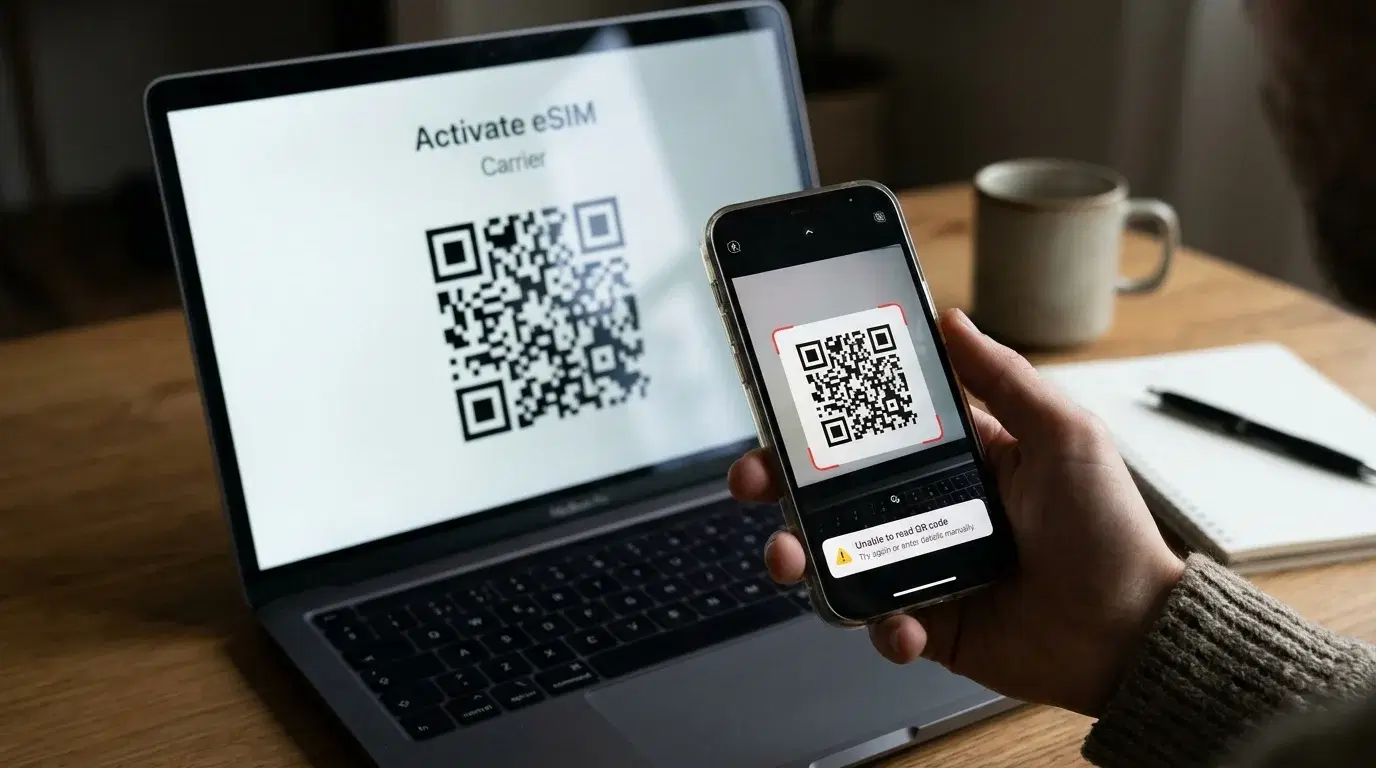
You hold your phone over the code, nothing happens, and your flight lands in a few hours. When your eSIM QR code won't scan, the code itself is rarely damaged. In most cases the cause is the scanner you picked, a dim screen, a weak connection, or a profile that was installed once already. This guide goes through every fix in the order that saves the most time. You will start with quick checks, move to the right scanning path on iPhone and Android, and finish with manual eSIM installation using two short lines of text.
Why Your eSIM QR Code Won't Scan
An eSIM QR code is a delivery wrapper. Inside it sit two pieces of text. The first is the address of the server that stores your eSIM, called the SM-DP+ address. The second is an activation code that tells the server which eSIM belongs to you. Your phone reads the code, contacts the server over the internet, and downloads the eSIM profile.
That means a failed scan can start in four places. The image may be hard to read. The scanner may be the wrong one. The download may fail because your connection drops. Or the profile may be unavailable, either because someone used it already or because your phone refuses it. Once you know which of the four you face, you stop tapping at random and fix the real problem.
Check the Basics Before You Scan Again
These five checks take about two minutes and clear a large share of cases.
-
Connect to Wi-Fi. Your phone needs the internet to download the profile, even after a clean scan. Mobile data on a weak signal often fails halfway through.
-
Confirm your phone supports eSIM. Newer models usually do. Apple lists the iPhone XR, XS and every later model, and Samsung and Google cover recent Galaxy S and Pixel phones. Check your exact model on the maker's website if you feel unsure.
-
Make sure the phone is unlocked. A phone tied to one carrier can carry eSIM hardware and still reject a profile that another provider issued.
-
Install pending updates. An old iOS or Android build can break the eSIM setup screen.
-
Turn off your VPN and iCloud Private Relay for a few minutes. Both can mask your location, and the server may then turn down the download.
If you are about to travel, do all of this at home. The easiest moment to install your eSIM is the day before departure, on stable Wi-Fi, with a full battery and nobody waiting behind you at an arrivals gate. Keep data roaming off before you land, and switch it on after you reach your destination.
Use the Right Scanner for Your Phone
This is the fix that solves most "won't scan" problems. Many people point the normal camera at the code and expect the phone to understand it. On some phones that works, and on many it does not.
iPhone
Open Settings, tap Cellular, which some regions label Mobile Data, then tap Add eSIM. On older versions of iOS the button reads Add Cellular Plan. Choose Use QR Code, and the camera opens inside the eSIM flow. Point it at the code and hold the phone still.
Two shortcuts exist. The iPhone Camera app can detect an eSIM code and show a Cellular Plan Detected message that you tap to continue. And if the code sits in an email on the same iPhone, iOS 17.4 and later let you press and hold the code, then tap Add eSIM.
Android
On Android, a regular camera app or a QR reader will not install an eSIM. It usually opens a web page or does nothing at all. You must start inside the settings. On a Samsung Galaxy, go to Settings, Connections, SIM manager, then Add eSIM and Scan QR code. On a Google Pixel, go to Settings, Network and internet, SIMs, then Add. Menu names change between brands and Android versions. Look for labels named Add eSIM, Add mobile plan or Download a SIM.
Fix Screen, Light and Distance Problems
Sometimes you use the correct menu and the camera still refuses to lock on. The cause is usually physical.
Raise the brightness on the screen that shows the code to the maximum. Dim screens are the most common culprit. Avoid windows and lamps that throw glare across the glass. Keep your phone about 15 to 25 cm away, and hold it steady for five to ten seconds. Wipe the camera lens with a clean cloth, because a fingerprint blurs the image more than you would expect.
Check the code itself. Every corner of the square must sit inside the frame, with some white margin around it. If a messaging app compressed the image, open the original email or order page instead. A blurry screenshot sent through chat often fails, while the same code on the provider's page scans in a second.
Your phone cannot scan its own screen. If the email with the code sits on the phone you want to use, you need a workaround. Open the email on a laptop, tablet or second phone. You can also print the page. On iPhone with iOS 17.4 or later, the press and hold method described above removes the problem completely.
Install the eSIM Manually
Manual installation is a normal feature of the eSIM standard, not a hack. Every QR code simply carries the same two values you can type by hand, and the result is the same eSIM profile. When scanning keeps failing, this is usually the quickest way out.
Find your manual details
Look in your confirmation email, your provider's app or your order page for a section called manual installation. You should see an SM-DP+ address and an activation code. Some providers show one long string that begins with LPA and uses dollar signs between the parts. The address sits between the first two dollar signs, and the activation code comes after them. If you only received a QR image, ask the provider to send the two values in plain text.
Enter them on your phone
On iPhone, go to Settings, Cellular, Add eSIM, Use QR Code, and tap Enter Details Manually at the bottom of the scanner. Type the SM-DP+ address in the first field and the activation code in the second. Add the confirmation code only if your provider gave you one.
On Android, open the eSIM screen where the scanner appears and look for Enter code manually, Need help or Download a SIM instead. Pick the manual option and enter the details. Some Android phones ask for one combined code, and others ask for two separate values.
Avoid the typing mistakes that cause errors
Copy and paste the values whenever you can. A hidden space before or after the text is enough to make the phone reject the address. On iPhone, never paste the whole LPA string into the activation code field. Each part goes in its own box. If pasting fails, type slowly and check each character twice.
"I tried the Camera app three times and got nowhere. Then I typed the manual code, and the eSIM was working before my taxi reached the hotel."
Understand the Error Message on Your Screen
The wording on your screen points to the cause. Here is how to read the most common messages.
This code is no longer valid
This message usually means the profile was installed already, or the activation window expired. Open your cellular or SIM settings and check if the eSIM already sits in the list. People often install it without noticing, then try again and see the error. If the line is there, turn it on and select it for mobile data. If it is missing, the provider needs to issue a new code.
The phone cannot add plans for this carrier
A message of this kind points to a carrier lock or a compatibility limit, not a bad QR code. Contact your home carrier and ask if the phone is unlocked for other providers.
Invalid or unreadable code
Not every QR code in your inbox is the eSIM activation code. Some open a website or log you in to an app. Look for the code labeled eSIM activation, eSIM installation or cellular plan, and scan only that one inside the eSIM menu.
Storage full
Phones hold a limited number of eSIM profiles. If you have collected several old travel plans, delete the ones you no longer need in your cellular settings, then try again.
What to Do With a Used or Expired QR Code
Most eSIM codes work one time. Once a phone completes the download, the code is spent. Deleting the eSIM later does not bring the original code back, and trying the same code on a second phone will fail. Some providers also set a time limit. Install soon after you receive the order.
When the code is truly used or expired, contact the provider and ask for a new one. Send the order number, your phone model and a screenshot of the error message. Support teams often ask for the EID too, a unique identifier for your phone. On iPhone you can find it in Settings, General, About. With that number, some providers can push the eSIM straight to your phone and skip the QR code completely.
Extra Fixes When Nothing Seems to Work
Restart the phone and begin the setup again, since a temporary glitch in the camera or the setup flow can block a scan that should work. Turn airplane mode on for ten seconds, turn it off, and retry on stable Wi-Fi. Move to a different network if your current one blocks certain connections, which public hotspots sometimes do. Update the phone one more time and check that the date and time are set automatically.
If every step fails, stop and contact support instead of trying again and again. Repeated attempts on a one time profile can leave it half installed, which makes the fix harder.
Plan Ahead for Airport Arrivals
A dead eSIM is easier to handle at home than in a terminal. Before you leave, save your manual installation details in a note on another device and take a screenshot of the QR code. Keep your airport pickup details somewhere that works offline, for example a screenshot of your booking confirmation, the driver contact number and the meeting point. Airport Wi-Fi can help if your plan will not activate, though you should treat it with care and avoid entering passwords on open networks.
If you book a private transfer, the confirmation usually tells you where to meet your driver, and having it available offline means a missing signal never leaves you stranded. Transpovia is a ground transportation marketplace, and its airport transfer bookings give you a clear pickup plan to rely on while your phone connection gets sorted.
FAQs
Why does my eSIM QR code not scan with the Camera app?
Many phones cannot install an eSIM through a standard camera app. Open the eSIM menu in your settings, which tells the phone it is reading an eSIM profile, then scan there.
Can I scan an eSIM QR code on the same phone?
Not directly with the camera. Open the code on another screen, print it, or use manual entry. On iPhone with iOS 17.4 or later, press and hold the code in an email and tap Add eSIM.
Can I use an eSIM QR code twice?
In most cases no. The code is tied to one installation. If you need to move the eSIM to a new phone, ask your provider for a new code or for a transfer option.
What if manual installation also fails?
Check each character of the SM-DP+ address and the activation code, remove hidden spaces, and make sure the phone is online and unlocked. If it still fails, the profile may be used or expired, and the provider has to reissue it.
Is manual eSIM installation safe?
Yes. It installs the same profile the QR code would. Keep the code private, because anyone with the details can try to install your eSIM.
Do I need internet to install an eSIM?
Yes. The phone downloads the profile over a data connection, and Wi-Fi is the safest choice.
Get Connected Without the Guesswork
When an eSIM QR code won't scan, work through the problem in order. Check Wi-Fi, support and lock status. Use the scanner inside your settings. Fix the light and distance. Switch to manual entry when the camera keeps failing. Read the error message, and ask your provider for a fresh code if the old one is spent. That sequence solves nearly every case in a few minutes.
Once your phone is online, the next travel task is easy to plan. Transpovia helps you book an airport transfer or a private ride, and a driver is ready when you land and your connection is already working.


