
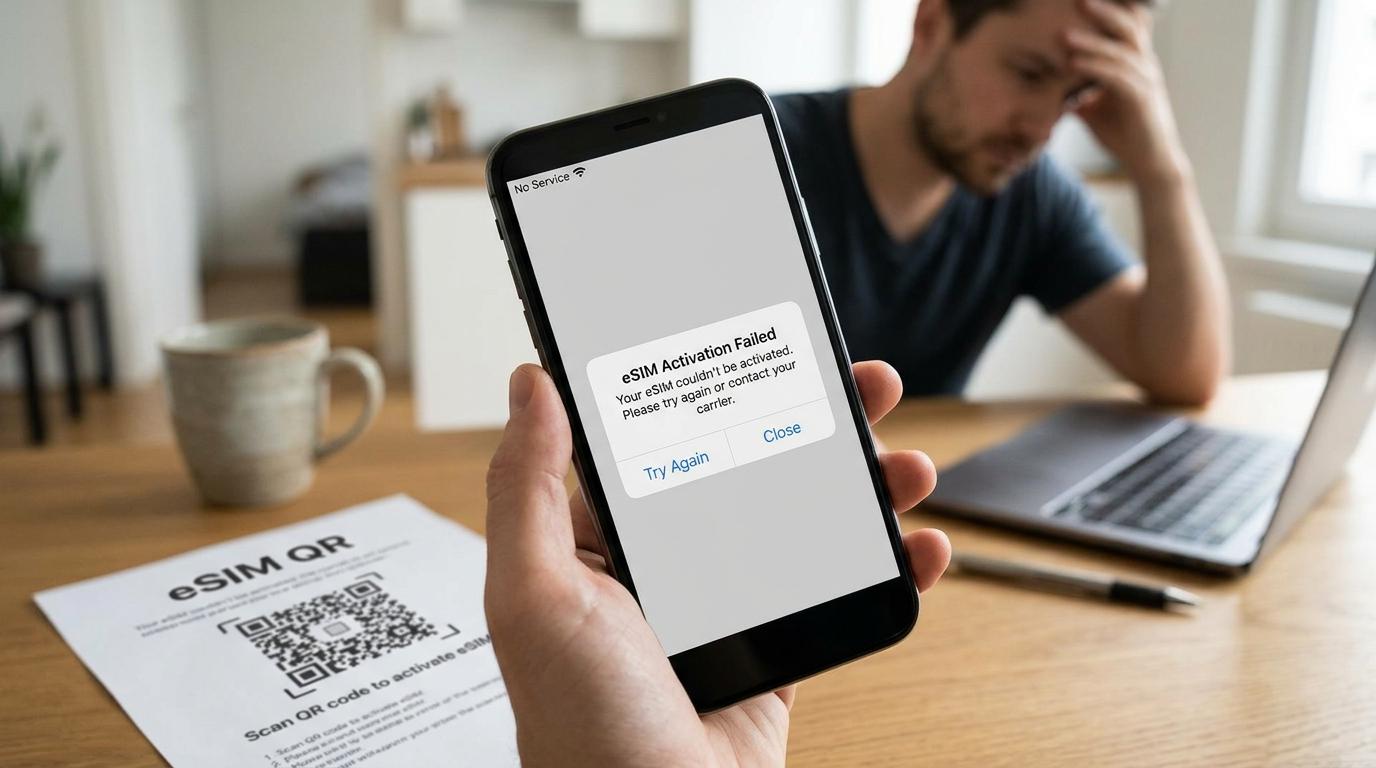
You land, switch off airplane mode, and wait for the bars to appear. Instead, the screen says No Service, or the signal looks fine and not one page will load. An eSIM not working at that moment feels serious, especially when you need a map, a ride message, or a hotel code.
The good news is that the eSIM itself is rarely broken. Most of the time a single setting is switched off, the wrong line handles your data, or the phone picked a network that will not accept it. This guide walks you through every fix in a sensible order, starting with the quickest checks. You will learn how to handle no service, how to repair no data, where the data roaming settings live on iPhone and Android, and what to do when an eSIM will not activate at all.
Why an eSIM Stops Working Right After You Land
A travel eSIM does not own a network. It connects to local partner networks in the country you visit, and your phone calls that connection roaming. When any link in that chain is switched off, the phone either refuses to register, which displays No Service, or registers and then blocks data, which displays full bars and a blank browser.
Five causes cover nearly every case. The line itself may be off. The eSIM may not be chosen for mobile data. Data roaming may be off for that line. The phone may be stuck on a network outside your plan. Or the plan may not cover the country you stand in, or may have run out of data or days.
Timing matters too. Some plans start only when the phone first connects to a supported network. A No Service message at home therefore means nothing. Travelers who want a smoother start can install a reliable travel eSIM over home Wi-Fi before the flight, then check every setting while the connection is stable and time is on their side.
Keep one rule in mind. Do not delete the eSIM to try again. Many profiles can be installed only once, and a deleted one may leave you with nothing to reinstall.
Run the Quick Checks First
These steps take under two minutes and fix a surprising number of cases.
First, confirm that airplane mode is off. Then switch it on for about 30 seconds and off again. The phone searches for networks once more, and that clears many stuck registrations.
Second, restart the phone. It sounds too simple to matter, and still a restart reloads the network software and often revives a frozen eSIM line.
Third, open your cellular or SIM settings and look at the eSIM line. It must read on. If it reads off, turn it on and give the phone a minute.
Fourth, check that you stand in a country your plan covers. A plan bought for Spain will not connect in Portugal, and a regional plan may leave out a country you assumed was included. Your order confirmation or the provider app lists the covered places.
Fifth, look at the plan status. Plans end when the data runs out or the validity period closes, and the phone shows the same symptoms in both cases. The provider app or account page shows what remains.
If nothing changed, move on to the symptom you see.
How to Fix eSIM No Service
No Service, Searching, or SOS only means the phone cannot register on a network. A signal exists. The phone is not allowed onto it or has not found a usable one.
Give It a Few Minutes and Find Open Air
Airport terminals, underground platforms, and aircraft cabins all weaken reception. Walk to an area near a window or outside, and wait a few minutes. Phones can take a while to find a partner network on first arrival.
Turn the eSIM Line Off and On
Open your SIM settings, switch the eSIM line off, wait ten seconds, and switch it on. This repeats the registration attempt and touches nothing else. It works best on a line that shows active and sits on Searching.
Switch to Manual Network Selection
Automatic selection sometimes locks onto a network your plan does not use. Turn automatic selection off and the phone lists the networks it can see. Pick one of the operators named in your plan details. If it fails after a minute, try the next one. Networks labeled 4G or LTE usually work better than those labeled 3G.
Once a connection works, you can keep manual selection for the rest of the trip. It saves frustration when you move between cities and the phone keeps grabbing the wrong operator.
Check for a Carrier Lock
A phone locked to one carrier may refuse to register on another network, and it may refuse a second eSIM. If you bought the phone through a carrier on a payment plan, ask that carrier to confirm the device is unlocked. Settings changes will not bypass a lock, and only the carrier can remove it.
How to Fix eSIM No Data When You Have Signal
Full bars and a spinning page point to a data routing problem, not a registration problem. The phone found the network, and it sends your traffic through the wrong line or blocks it.
Make the eSIM Your Mobile Data Line
Installing an eSIM does not make it the data line. On an iPhone, open Settings, then Cellular, then Cellular Data, and tap the eSIM line. On a Samsung phone, open Settings, then Connections, then SIM manager, then Mobile data, and choose the eSIM. On a Pixel, open Settings, then Network and internet, then SIMs, then Mobile data, and select the eSIM.
If your home SIM stays active, keep its data off while you travel. Otherwise the phone may quietly use your home plan and run up roaming charges.
Turn Off Cellular Data Switching
Some phones move data between SIMs when one connection looks weak. On an iPhone this setting is called Allow Cellular Data Switching. On a Pixel, look for automatic data switching in the SIM options. When it is on, the phone may drift back to your home line without a warning. Turn it off while you travel.
Check the APN
The access point name, or APN, tells the phone how to reach the internet through a network. Most eSIM profiles set it automatically. Now and then the phone skips the suggested value, and data stays blocked even with full bars.
Open the eSIM line, find the cellular data network or access point names option, and compare the entry with the values in your eSIM instructions. Type the values exactly the way your provider lists them. Do not copy settings off a random forum post, because a wrong APN blocks data just the way a missing one does. Save the entry, restart the phone, and test again.
eSIM Data Roaming Settings, Step by Step
This fix solves the largest share of cases, and it deserves its own section. A travel eSIM connects to local partner networks, and the phone calls that connection roaming. When data roaming is off for that line, the phone blocks it.
Switching it on does not mean you pay roaming fees to your home carrier. You use the data in your eSIM plan, and your home plan stays out of it when the eSIM is the active data line and your home SIM data is off.
iPhone
Open Settings and tap Cellular, or Mobile Service on some versions. Tap your travel eSIM line. Turn on Data Roaming. Go back, tap Cellular Data, and confirm that the travel eSIM is selected. Wait up to a minute for the status bar to change.
Samsung Galaxy
Open Settings, tap Connections, then Mobile networks, and turn on Data roaming. Then open SIM manager and confirm that the eSIM is set for mobile data. If your phone shows a separate menu for each SIM, open the eSIM entry and look for the roaming toggle there.
Google Pixel and Other Android Phones
Open Settings, tap Network and internet, then SIMs, then tap your travel eSIM. Turn on Roaming. Check that Mobile data is on for that line too. Menu names differ between brands. If you do not see these exact words, search the settings for roaming and open the result that belongs to the eSIM.
After you switch roaming on, wait a minute before you judge the result. Phones need a short time to register and start sending data.
What to Do When an eSIM Won't Activate
Activation problems happen before any signal appears. The plan is bought, and the phone will not install it or turn it on.
First, connect to Wi-Fi. Installing an eSIM needs internet, and a weak or filtered connection can stop the download halfway. A hotel or airport network that asks for a login on a web page sometimes blocks it. Try another Wi-Fi network or a personal hotspot on a second phone.
Second, check that the phone supports eSIM and is unlocked. Not every phone sold in every market supports eSIM, and some regional models disable it.
Third, treat the QR code with care. Most codes work once. If the install failed halfway, do not scan the code again before you check your SIM settings, because the profile may already sit there in an inactive state. Your provider app or account page usually shows the code or the manual activation details again.
Fourth, if the phone shows an error and the profile never appears, take a screenshot and contact the provider. They can reissue an activation code, which is the right answer when a code was used or the profile was deleted.
Fifth, keep install and activation apart in your mind. Some plans install at once and activate on arrival. If the plan says it starts on first connection, No Service at home is expected.
Less Obvious Causes That Break an eSIM
If the main settings look right and the eSIM still fails, check these quieter problems.
A VPN app can interfere with a fresh connection. Switch it off, test the data, and turn it back on when the connection works.
A pending software update can cause trouble. Phones sometimes misbehave after a major update, and eSIM lines may show No Service before a small patch arrives. Update over Wi-Fi if one is waiting.
Date and time settings matter. When the phone does not set the time automatically, network registration can fail. Turn on automatic date and time.
Low data mode or a data saver can limit background traffic and make apps look dead. Switch it off while you test.
Dual SIM voice settings can confuse calls and texts. If data works and calls do not, check which line is the default for voice and messages. Data only eSIMs carry no phone number. A label reading No Number is normal on those plans.
Finally, congestion can slow things down. If everything looks right and speeds are poor, wait ten minutes or pick another network by hand.
Reset Network Settings Only After the Easier Fixes
If every step above failed, resetting network settings clears saved Wi-Fi networks, cellular settings, and VPN profiles, then rebuilds them. It often fixes deep registration problems. On an iPhone, the option sits under Settings, General, Transfer or Reset iPhone, Reset, then Reset Network Settings. On Android it sits under the system reset options, and the exact path changes by brand.
On most phones this step does not delete your eSIM profile. Note your eSIM details first anyway, and be ready to retype Wi-Fi passwords. Never choose a full factory reset to solve a signal problem, because it removes everything on the phone and can wipe installed eSIM profiles.
When to Contact Your eSIM Provider
Some problems sit on the provider side. A plan that never activated, a code already used, a profile deleted by mistake, or a network issue in one country all need the support team that sold you the plan.
Contact them early, ideally the day the problem starts. Send a screenshot of your SIM settings showing the eSIM line and its status, a screenshot of the mobile data settings, a screenshot of the network list, and your order number. The support team then has what it needs for the first reply.
Avoid retrying an install again and again. Once a profile registers on a partner network and uses data, many providers consider the plan used, and refund options shrink. Report the failure first, then wait for instructions.
Stay Connected for Your Airport Transfer
An eSIM problem hurts most in the first hour after landing. You may need to message a driver, open a booking confirmation, share your location, or check a flight update. A ride planned in advance lowers the stress even when your data needs a while to connect.
Transpovia is a ground transportation marketplace where travelers book airport transfers and private rides in advance. Save your booking confirmation in the form of a screenshot or a PDF before you leave home, and you can show it with no signal at all. Write down the pickup instructions and the driver contact details your booking gives you. Keep airport Wi-Fi in mind for backup, because many terminals offer a free connection for a limited time, which is often enough for a quick message.
A short checklist helps on arrival. Turn off airplane mode. Confirm the eSIM line is on. Check data roaming. Set the eSIM for data. Wait one minute. Then open your booking and your messages.
I landed after a long flight and my eSIM showed No Service. I had saved my booking offline, which made it easy to find my driver while I sorted out the roaming switch.
FAQs
Why does my eSIM say No Service?
The phone cannot register on a network. The usual reasons are data roaming being off, the wrong network being selected, a plan that does not cover your location, or a plan that has not started. Turn on data roaming for the eSIM line, restart the phone, and try manual network selection.
Why does my eSIM show signal but no data?
The phone connected to a network and still blocks or misroutes traffic. Check that the eSIM is the mobile data line, that data roaming is on, and that the APN matches your provider instructions. Check also that your plan still has data and days left.
Do I need to turn on data roaming for a travel eSIM?
Yes, in most cases. A travel eSIM uses partner networks abroad, and the phone calls that connection roaming. Turn it on for the eSIM line only, and keep data off on your home SIM to avoid charges by your home carrier.
Should I delete my eSIM and install it again?
No, unless your provider tells you to. Many eSIM profiles cannot be installed a second time, and deleting one can leave you without service. Contact the provider for a new activation code if a reinstall is needed.
Why will my eSIM not activate?
Common causes include a weak Wi-Fi connection during install, a QR code that was already used, a carrier locked phone, or a phone model without eSIM support. Try another Wi-Fi network, confirm that the phone is unlocked, and ask the provider about the activation code.
How long should I wait for an eSIM to connect after landing?
Give it a few minutes, and up to a minute after each settings change. Walk to an open area if you stand inside a terminal or on a platform. If nothing improves after a restart and a manual network choice, contact your provider.
Can an eSIM stop working because the data ran out?
Yes. A plan ends when the data is used up or the validity period runs out, and the phone may show the same symptoms that a settings problem causes. Check your remaining data in the provider app or on your account page.
Will resetting network settings delete my eSIM?
On most phones it will not delete the profile. It does remove saved Wi-Fi networks and cellular settings. Write down what you need first. A full factory reset is different and can remove eSIM profiles.
Conclusion
An eSIM not working is almost always a settings problem, and you can fix it yourself in a few minutes. Start with airplane mode and a restart, confirm that the line is on, make the eSIM your data line, switch on data roaming for it, and try manual network selection. If the phone still refuses, check the APN, the plan status, the carrier lock, and the VPN, then contact your provider with screenshots.
Prepare before you travel and the problem often never appears. Install the eSIM over Wi-Fi, learn where your roaming switch lives, and save your booking details offline. When you book an airport transfer or private ride with Transpovia ahead of time, you land with a plan for the first hour, even if your phone needs a minute to wake up.


