
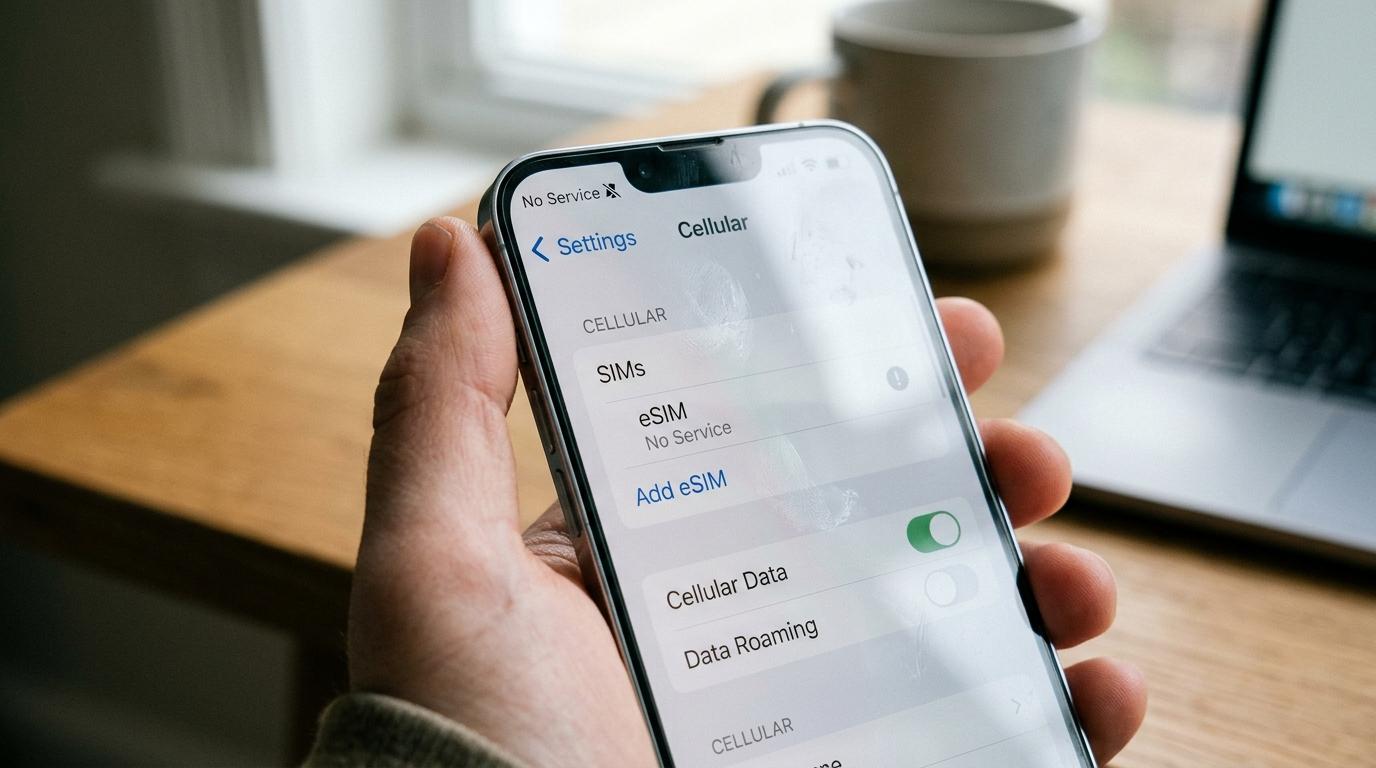
You step off the plane, switch off airplane mode, and your phone says eSIM no service. Before you panic, know this. The eSIM itself is rarely broken. Most of the time one switch is off, the wrong line is handling data, or the phone has not found a partner network. This guide covers the causes in the order worth checking them, with exact steps for iPhone and Android. You will also find fixes for stubborn cases, ways to stay reachable at the airport while you troubleshoot, and a short checklist for your next trip.
What eSIM no service really means
When your phone shows No Service, Searching, or Emergency Calls Only, it has not registered on a mobile network. That is all the message says. It does not tell you the eSIM is dead, the plan is empty, or the country has no coverage. The phone could be pointed at the wrong line, blocked by a roaming setting, still scanning, or standing in a weak spot.
A travel eSIM works differently than your home plan. It does not bring its own towers. Your phone attaches to a local partner network in the country you visit, and the phone labels that connection roaming. That one detail explains most cases of eSIM no signal abroad, and it is why a setting called Data Roaming matters a great deal. We will get to it shortly.
Two terms help here. An eSIM profile is the digital plan stored on your phone. A line is the slot that profile takes in your settings. A phone with a physical SIM plus an eSIM has two lines, and they sometimes compete for data. Several fixes below come down to choosing the right line.
Check if you have landed
If the screen says eSIM no service while you are still at home or still in the air, nothing is wrong. Travel eSIMs connect only inside the countries or regions their plan covers. Some also start their validity clock the first time they connect at the destination, which means they stay quiet before you arrive.
Leave the line off, or ignore the message, and test again after landing. Give the phone a few minutes with airplane mode off. It needs time to scan and register. If the message sticks around once you are on the ground, move on to the fixes below.
If you are still choosing a plan for a future trip, look for a travel eSIM with local networks in your destination country. A plan that names its local partners makes troubleshooting easier, because you know exactly which network to select when the phone struggles.
Quick fixes to try in the first two minutes
Start with the cheapest steps. They solve more cases than any advanced setting.
Toggle airplane mode and restart the phone
Switch airplane mode on, count to thirty, and switch it off. That forces the phone to register on a network again. If nothing changes, restart the phone completely. Many travelers skip the restart, and it clears a surprising number of stuck connections.
Make sure the eSIM line is on
On an iPhone, open Settings, tap Cellular or Mobile Service, select the travel eSIM, and check that Turn On This Line is enabled. On Android, open Settings, then Network and Internet, then SIMs, pick the eSIM, and switch it on. Menu names change by brand, though the idea stays the same.
Choose the eSIM for mobile data
Your home SIM may still be chosen for data. On an iPhone, go to Settings, Cellular, Cellular Data, and select the travel eSIM. Switch off Allow Cellular Data Switching while you troubleshoot, because iOS can otherwise slip back to your home line. On Android, find Mobile Data inside the SIMs menu and pick the travel eSIM there.
This step also protects your wallet. If your home line keeps handling data abroad, your home carrier may bill roaming rates. Check your home line and switch its data roaming off unless you want it active.
Turn on data roaming for the travel eSIM
This is the fix that works most often, and it confuses people because it sounds expensive. A travel eSIM always joins a local network in the role of a guest. Your phone labels that guest connection roaming and blocks it when the roaming switch is off. The plan is prepaid, which means turning roaming on for that one line is how the plan is meant to work.
On an iPhone, open Settings, Cellular or Mobile Service, tap the travel eSIM, and switch on Data Roaming. If you see Cellular Data Options, the toggle sits inside that menu. On Android, open Settings, Network and Internet, SIMs, tap the eSIM, and enable Roaming.
Two cautions. Switch on roaming for the travel eSIM line only, and not for your home line. And wait a minute after flipping it. The phone sometimes needs sixty seconds to register before the bars return.
Pick a network by hand
Phones normally choose a network automatically. In a busy airport, near a border, or in a rural area, that choice can land on a network your eSIM provider does not support. The phone then shows no service even when other networks have strong signal.
On an iPhone, open Settings, Cellular, tap the eSIM, choose Network Selection, and turn Automatic off. The phone will list nearby networks. Tap one, wait thirty seconds, and look at the status bar. If nothing happens, try the next one. On Android, open the eSIM settings, find Network or Network Operators, turn off automatic selection, and pick one in the list.
Your eSIM provider usually names its partner networks on the plan page or in the confirmation email. Start with those names. Once service returns, you can switch back to automatic, though staying on a manual choice is fine for the rest of a short trip.
Wrong plan, wrong country, or wrong dates
Sometimes the phone is perfectly set up and the plan is the problem. Check three things in your provider app or confirmation email.
First, the coverage area. A plan built for one country will not connect in the next one, and a regional plan may leave out a country you assumed was included. Border crossings by train, bus, or ferry catch people off guard.
Second, the validity window. Some plans start on the installation date, others on the first connection, and others on a date you chose at checkout. An expired plan, or one that has not started, shows no service, which looks identical to a technical fault.
Third, the data balance. When the allowance runs out, many plans cut off completely instead of slowing down. Open the provider app and read the remaining data.
Phone restrictions that block an eSIM
Some phones refuse eSIM profiles, or accept them and never connect. Three causes show up again and again.
A carrier lock is the first. Phones bought on an installment plan are often tied to one carrier, and a locked phone can reject profiles issued by other providers. On an iPhone, open Settings, General, About, and look for Carrier Lock. It should say No SIM restrictions. If it does not, contact your home carrier before you travel.
Outdated software is the second. A pending iOS or Android update can include network fixes. Connect to Wi-Fi at the airport, install updates, and restart. On an iPhone, a carrier settings update sometimes shows up in a small window on the screen. Accept it.
Line conflicts are the third. If you carry a physical SIM and an eSIM, the idle physical line can confuse the status display. Switch off any line you do not need on this trip, then test again.
Check the APN and the VPN
If the phone shows bars and pages will not load, the problem may be the Access Point Name, called the APN. The APN tells your phone how to reach the internet through the network. Most eSIMs set it automatically, and a few need a manual entry. Your provider lists the correct values in its help pages. On an iPhone, the setting sits under Cellular, your eSIM, Cellular Data Network. On Android, look for Access Point Names in the SIM settings. Enter the values exactly the way the provider lists them, with matching capitals.
A VPN can also cause trouble. Some apps force a connection that cannot find a route on a new network. Turn the VPN off, test the connection, and switch it back on once data flows. Battery saver and low data modes can restrict background connections too, which is why you should turn them off while you test.
When the eSIM shows signal and no internet
Full bars and no data is a different problem than no service, and the fixes overlap. Check that the eSIM is the selected data line, that Data Roaming is on for that line, and that the APN is correct. Test with a mobile browser rather than a single app, because one app can fail alone. Also open the provider app and confirm that data remains.
If everything looks right, wait a few minutes and move closer to a window or an open area. Basement parking, train tunnels, and terminal corridors weaken signal in ways that mimic a settings problem.
The reset steps to try last
When nothing has worked, try these in order, and keep your eSIM installed the whole time.
Reset network settings first. On an iPhone, open Settings, General, Transfer or Reset iPhone, Reset, and choose Reset Network Settings. This removes saved Wi-Fi networks and cellular preferences, and it does not delete the eSIM. You will need to rejoin Wi-Fi afterward, which means you should keep your passwords ready.
Do not delete the eSIM profile, even when you feel tempted. Many travel eSIMs use a QR code that works once. If you remove the profile, you may not be able to install it again, and you would need your provider to issue a new one. Delete a profile only when the provider support team asks you to.
Contacting the eSIM provider
Reach out once you have run the steps above. Support teams solve problems faster when you send details in the first message. Include a screenshot of your cellular settings, the name of the plan, the country and city where you are standing, the time you landed, and the steps you have already tried. Tell them what the status bar says, No Service, SOS only, or Searching. That one word helps them narrow the cause.
Use the provider chat in its app. A messaging app over airport Wi-Fi works well for this.
Stay reachable at the airport while you fix it
No data at an arrivals hall causes real stress, mostly because you may need to find a driver, a hotel, or a family member. A few habits take the pressure off.
Connect to the airport Wi-Fi before you leave the terminal, and use it to load your booking confirmation, your hotel address, and an offline map of the area. Take screenshots of your reservation details and driver instructions before you fly. A screenshot works without data, and a link in an email does not.
If you booked a private airport transfer, check the confirmation for pickup instructions and a contact number, and save it offline. A ride you booked in advance through Transpovia, for example, has the details waiting in the confirmation, which means a dead connection does not leave you wandering the arrivals hall.
I landed at midnight with no signal, and I almost panicked. The pickup instructions were in a screenshot, and I walked straight to my driver.
Also keep a plan B for communication. Many airports offer free Wi-Fi for a limited time, and hotel front desks can call a driver if you reach them.
A short checklist before your next trip
Install the eSIM at home on Wi-Fi, and leave it switched off before you land. Confirm that your phone is not locked to a carrier. Read the validity rules, the coverage list, and the partner network names in the confirmation email. Save the provider support contact. Download offline maps for your destination. Screenshot your hotel address and transfer details. Charge your phone fully, because poor signal drains the battery quickly when the phone searches.
On arrival, follow the same order each time. Turn on the line, choose it for data, switch on Data Roaming, wait a minute, and then pick a network manually if nothing appears. That sequence solves the large majority of problems in minutes.
FAQs
Why does my eSIM say no service when I land abroad?
The most common reasons are Data Roaming switched off for the eSIM line, the wrong line selected for mobile data, or the phone still waiting to register on a partner network. Check those three in order, restart the phone, and wait a minute or two before you try anything bigger.
Is eSIM no service normal before I arrive?
Yes. A travel eSIM connects only inside its coverage area, which means a No Service message at home or in the air is expected. Test again after you land with airplane mode off.
Do I need data roaming on for a travel eSIM?
Yes, in most cases. The eSIM joins a local network in the role of a guest, and your phone calls that roaming. Turn it on for the travel eSIM line only, and keep it off on your home line unless your home plan covers international use.
What if my eSIM searches for a network and never connects?
Switch to manual network selection and try each partner network on your provider list, waiting thirty seconds on each one. If none connects, confirm that the plan covers your country, that it is active, and that data remains.
Should I delete my eSIM and install it again?
No, not unless support asks you to. Many travel eSIM profiles install once, and deleting one can leave you without a working plan. Try the airplane mode, restart, roaming, and network selection steps first.
Why do I have bars and no internet?
That usually points to the wrong data line, roaming off for the eSIM, or an APN problem. Check each one, turn off any VPN, and open the provider app to confirm that your data has not run out.
Conclusion
Seeing eSIM no service after a long flight feels bigger than it is. The cause is almost always a setting, a plan detail, or a network choice, and each one has a quick fix. Run the steps in order, keep the profile installed, and contact your provider with clear details if the problem lasts. Better still, prepare before you fly with offline copies of your booking and maps.
When you plan the airport ride, book it ahead, and your pickup details stay in your inbox no matter how your phone behaves on arrival. You can arrange your airport transfer with Transpovia before you leave home and walk off the plane knowing someone is expecting you.


