
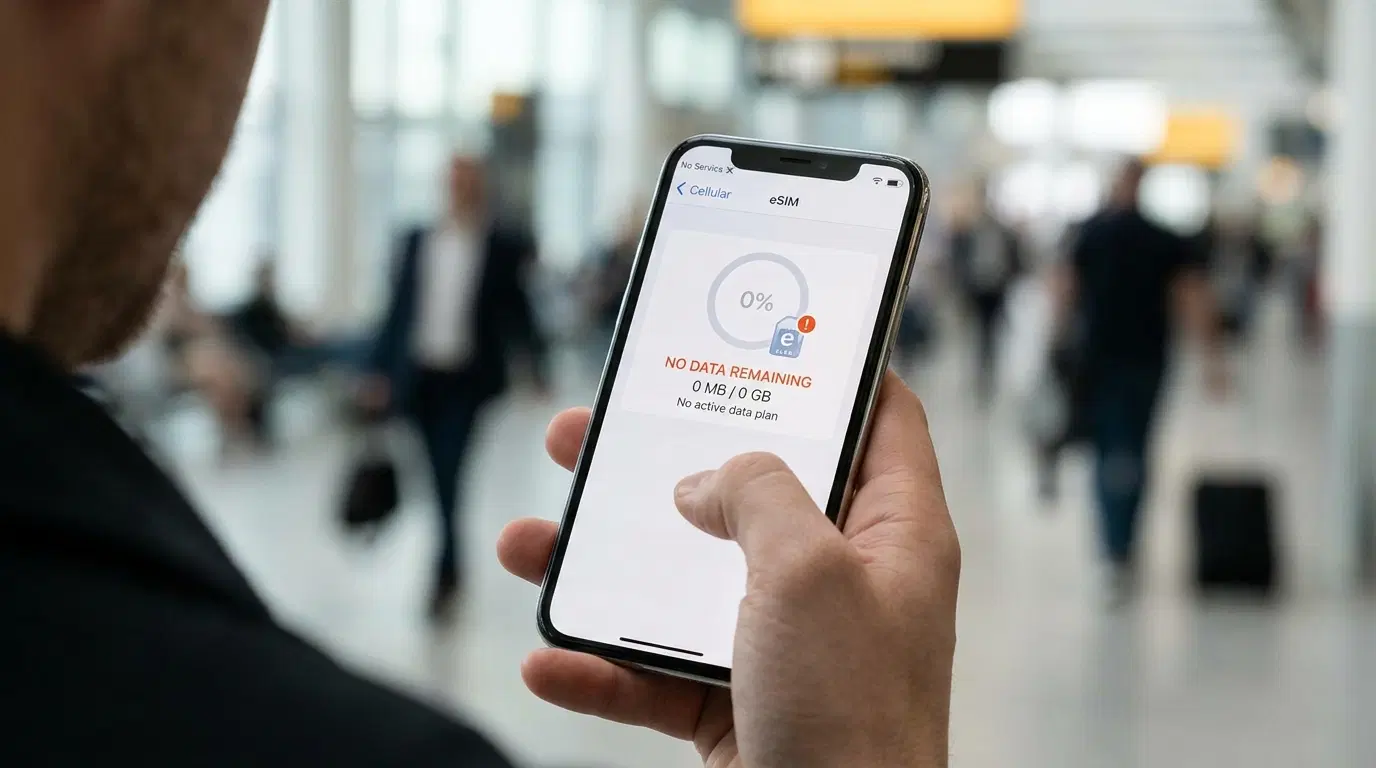
You landed, your phone shows a network name, and the signal bars look healthy. Then you open Maps and nothing loads. If you are dealing with eSIM no data right now, here is the good news. The eSIM itself is rarely the problem. In most cases one setting is switched off, or your phone is sending internet traffic through the wrong line.
This guide puts the fixes in the order that solves the most cases first. You start with three quick checks, move on to network and APN settings, and finish with plan problems that no setting can repair. The steps cover iPhone, Samsung Galaxy and Google Pixel phones, and each one takes less than a minute.
Why an Installed eSIM Can Show Signal and Still Give You No Data
Installing an eSIM and using one are different steps. Installing adds the profile to your phone. Activation happens when your phone registers on a network and your plan starts running. Data is a third step, because your phone also has to choose that line for internet traffic. A problem at any of the three looks identical on screen, which explains why the whole thing feels confusing.
Most travel eSIMs connect through a local partner network. Your phone sees a network outside your home country and labels the connection roaming. If Data Roaming is off for that line, the phone attaches to the tower and then blocks every data request. That one detail explains a huge number of eSIM data roaming complaints, and it is the reason you can see bars while a page spins forever.
Dual SIM phones add another trap. Your home SIM stays active, and the phone may keep using it for internet. Apple states that an iPhone uses one cellular data network at a time, which means the line you pick decides everything.
Coverage matters too. Travel eSIM plans are sold for a country or a region, and a plan bought for one place will not work in another. If you have not chosen a plan for your next trip, you can compare travel eSIM data plans and check the coverage list before you pay. Doing that at home takes five minutes and saves you a stressful moment at arrivals.
Three Quick Checks That Fix Most eSIM Data Not Working Cases
Run these three in order. Do not delete anything at this stage. Deleting the profile can remove your only path to a fix, and many eSIMs cannot be installed twice.
Switch the eSIM Line On
An eSIM can be installed and still be switched off. On an iPhone, open Settings, tap Cellular or Mobile Data, tap the eSIM line, and turn on Turn On This Line. On a Samsung Galaxy, open Settings, tap Connections, tap SIM Manager, and switch the eSIM on. On a Google Pixel, open Settings, tap Network and Internet, tap SIMs, choose the eSIM, and turn on Use SIM.
It sounds too simple to matter, and people overlook it all the time.
Choose the eSIM for Your Data Line
Having the eSIM on is not enough. Your phone must also use it for mobile data. On an iPhone, open Settings, tap Cellular or Mobile Data, tap Cellular Data, and pick the eSIM line. On a Samsung, open Settings, tap Connections, tap SIM Manager, and set Mobile Data to the eSIM. On a Pixel, open Settings, tap Network and Internet, tap SIMs, and choose the eSIM for Mobile Data.
If your home SIM stays selected, the eSIM gives you nothing even when everything else is correct. You can keep your home SIM on for calls and texts. Only the data line needs to point at the eSIM.
Turn On Data Roaming for the eSIM Only
This is the fix that works most often. On an iPhone, open Settings, tap Cellular or Mobile Data, tap the eSIM line, and switch on Data Roaming. On a Samsung, open Settings, tap Connections, tap Mobile Networks, and switch on Data Roaming. On a Pixel, open Settings, tap Network and Internet, tap SIMs, choose the eSIM, and turn on Roaming.
Keep roaming switched off on your home SIM. That protects you against surprise charges by your home carrier. The eSIM toggle is different, because your travel plan is built around the partner network it uses, which makes this setting normal and expected.
After each change, wait one to two minutes. Networks need a moment to register your phone. Then open a web page on mobile data with Wi-Fi switched off. A test on Wi-Fi proves nothing.
eSIM Connected No Internet? Try These Next Steps
If the three quick checks did not help, keep going. Each fix below targets a different cause.
Toggle Airplane Mode and Restart the Phone
Turn airplane mode on, count to thirty, and turn it off. Your phone then searches for networks again. If that does nothing, restart the phone. A restart reloads the modem and the SIM manager, and it clears a stuck Activating status more often than you would expect. Give the phone a few minutes after it boots.
Pick the Network by Hand
Automatic selection sometimes grabs a network that your plan does not use. On an iPhone, open Settings, tap Cellular, tap the eSIM line, tap Network Selection, and turn off Automatic. On an Android phone, open the eSIM settings, find Network Operators, turn off Select Automatically, and choose a network on the list.
Your provider usually names the supported networks in the order email or in the app. Try one network at a time and wait a minute after each choice. A wrong pick shows an error or no signal, and then you move to the next name on the list.
Check the APN
The APN is a short setting that tells your phone how to reach the internet. Most eSIMs set it automatically, and on most Android phones you should leave it alone. If the signal is fine, roaming is on and the eSIM is your data line, a missing or wrong APN becomes the next suspect.
Your provider lists the exact APN in the order email or app. Type it exactly the way it is written, with no extra spaces. On an iPhone, open Settings, tap Cellular, tap the eSIM line, and look for Cellular Data Network. If that option does not appear, your eSIM uses automatic settings and the APN is not your problem. On a Pixel, open Settings, tap Network and Internet, tap SIMs, choose the eSIM, and open Access Point Names. Save the entry and make sure it is selected. Then switch mobile data off and on once.
Turn Off Your VPN and Content Filters
Maybe maps load and some apps stay silent. A VPN or a content filter can block traffic on a fresh connection. Switch them off, test again, and bring them back once data flows. A short pause costs you nothing.
Settle a Dual SIM Conflict
Two active lines can fight over data. Check that only the eSIM carries mobile data. On an iPhone, look at Allow Cellular Data Switching. When it is on, your phone may move data to the other line during a call or when coverage changes. Switch it off while you troubleshoot. Keep your home line for calls and texts if you want, though data should stay on the eSIM.
How to Fix eSIM No Internet When the Plan Is the Problem
Sometimes every setting is right and the connection still refuses to start. Then the cause sits with the plan or the phone itself.
The Plan Starts on Arrival
Some providers let you install the eSIM at home and start the plan only when your phone connects to a supported network in the destination country. At home, the eSIM can look dead and still be fine. If your provider says the plan starts on arrival, install it before you fly, leave the line off if the instructions tell you to, and switch it on after you land.
The Country or Region Does Not Match
Check the coverage list on your order. A plan for Europe will not work in Mexico, and a plan for one country will not stretch to its neighbor. A mismatch leaves you with no service even when the profile looks healthy.
The Data Ran Out or the Plan Ended
Open the provider app or the usage page and check your balance and your end date. Maps, video calls and background updates can drain a small plan faster than you expect. Some unlimited plans slow your speed after a daily allowance, which feels slow rather than dead. Read your plan terms to learn which type you bought. If the plan is finished, top it up in the provider app.
The Phone Is Locked to a Carrier
A phone locked to one carrier can reject other eSIM profiles. Apple notes that using two carriers on an iPhone requires the phone to be unlocked, or both plans to belong to the same carrier. If you bought the phone on a payment plan, ask your carrier to confirm that it is unlocked before you travel.
The Profile Was Already Used
An eSIM profile can usually be installed only once. If you scanned the QR code on another phone, deleted the eSIM, or reset the device, scanning again often fails. Contact the provider with a screenshot of your Settings screen and your order number. Many providers can issue a replacement. Keep the failed eSIM on your phone before they reply, unless they tell you to remove it.
Quick Symptom Guide
Use this table when you want the shortest route to a fix.
|
What you see |
Likely cause |
Fastest fix |
|
Full bars, pages will not load |
Data Roaming is off for the eSIM line |
Turn on Data Roaming for the eSIM |
|
Network name shows, data stays greyed out |
The eSIM is not the data line, or the APN is wrong |
Select the eSIM for Cellular Data and check the APN |
|
No Service or Searching |
Weak area, wrong network or the line is off |
Switch the line on, toggle airplane mode, pick a network by hand |
|
It worked, then stopped |
Allowance used up or the plan ended |
Check usage in the provider app and top up |
|
Some apps load, others do not |
A VPN or filter is in the way |
Turn off the VPN and test again |
|
Installed at home, nothing on arrival |
The plan starts when you land |
Switch the line on after landing |
Mistakes That Make eSIM Data Problems Last Longer
A few habits turn a two minute fix into an hour of stress. Watch for these.
-
Deleting the profile too early. You may lose the only copy of a plan that cannot be reinstalled.
-
Turning on roaming for the home SIM. Roaming belongs on the eSIM line only.
-
Testing in a dead spot. A basement garage or a tunnel proves nothing. Step outside or stand near a window.
-
Giving up after sixty seconds. A network can need a minute or two to register your phone.
-
Installing without a connection. The install step needs internet, and Wi-Fi is the safest choice.
We landed late and I could not reach our driver. Turning on data roaming for the eSIM took ten seconds, and every message arrived at once.
What to Do at the Airport While You Wait to Get Online
Even with a perfect setup, the first few minutes after landing can be rough. A little preparation removes most of the stress.
Before you fly, save your booking confirmation and your driver's contact details in screenshots. Download an offline map of the city. Write down the pickup point and the name that appears on your booking. If your eSIM takes a while, connect to the airport Wi-Fi and send your driver a quick message, then go back to fixing the eSIM.
Keep your home SIM on for calls and texts if you expect an important message. Switch off roaming on that SIM, though. Your home carrier then has no way to charge you for data you never meant to use.
Transpovia is a ground transportation marketplace, and your confirmation holds the pickup details you need. With those details saved offline, a slow eSIM never stands between you and your ride.
FAQs
Why does my eSIM show full bars and no data?
Full bars only tell you that the phone found a network. They say nothing about permission to send data. The two most common reasons are that Data Roaming is off for the eSIM line, or that the eSIM is not the selected data line. Fix those two settings first, wait a minute or two, and test again with Wi-Fi switched off.
Do I need data roaming on for a travel eSIM?
Yes, in most cases. A travel eSIM connects through a partner network that sits outside your home country, which means the roaming switch must be on for that line. Keep roaming off on your home SIM to avoid charges by your home carrier.
Can I reinstall my eSIM if I deleted it?
Usually not with the same QR code. Most eSIM profiles install once. If you deleted it, contact your provider with your order number and a screenshot, and ask about a replacement. Do not delete the eSIM while you troubleshoot.
How long does an eSIM take to start working after I land?
Often one to two minutes after you switch it on and make it the data line. If a few minutes pass with no change, toggle airplane mode, restart the phone and try a manual network choice.
Can I use my home SIM for calls while the eSIM handles data?
Yes. Many travelers do exactly that. Keep your home SIM on for calls and texts, make the eSIM the data line, and keep roaming off on the home SIM.
When should I contact the eSIM provider?
Contact them when the profile will not install, when every setting is correct and nothing changes after several minutes, or when your data usage shows zero. Send your order number and a screenshot of your cellular settings, which helps them respond faster.
Conclusion
Work down the list and stop at the first fix that works. For most people the answer is one of three things. The eSIM line is off, the eSIM is not the data line, or Data Roaming is off for that line. If those are fine, try a manual network, check the APN, and look at the plan itself.
Once your phone is online, the rest of the arrival gets easier. If you want to skip the taxi line, you can book a private airport transfer with Transpovia before you fly and keep the pickup details on your phone.


