
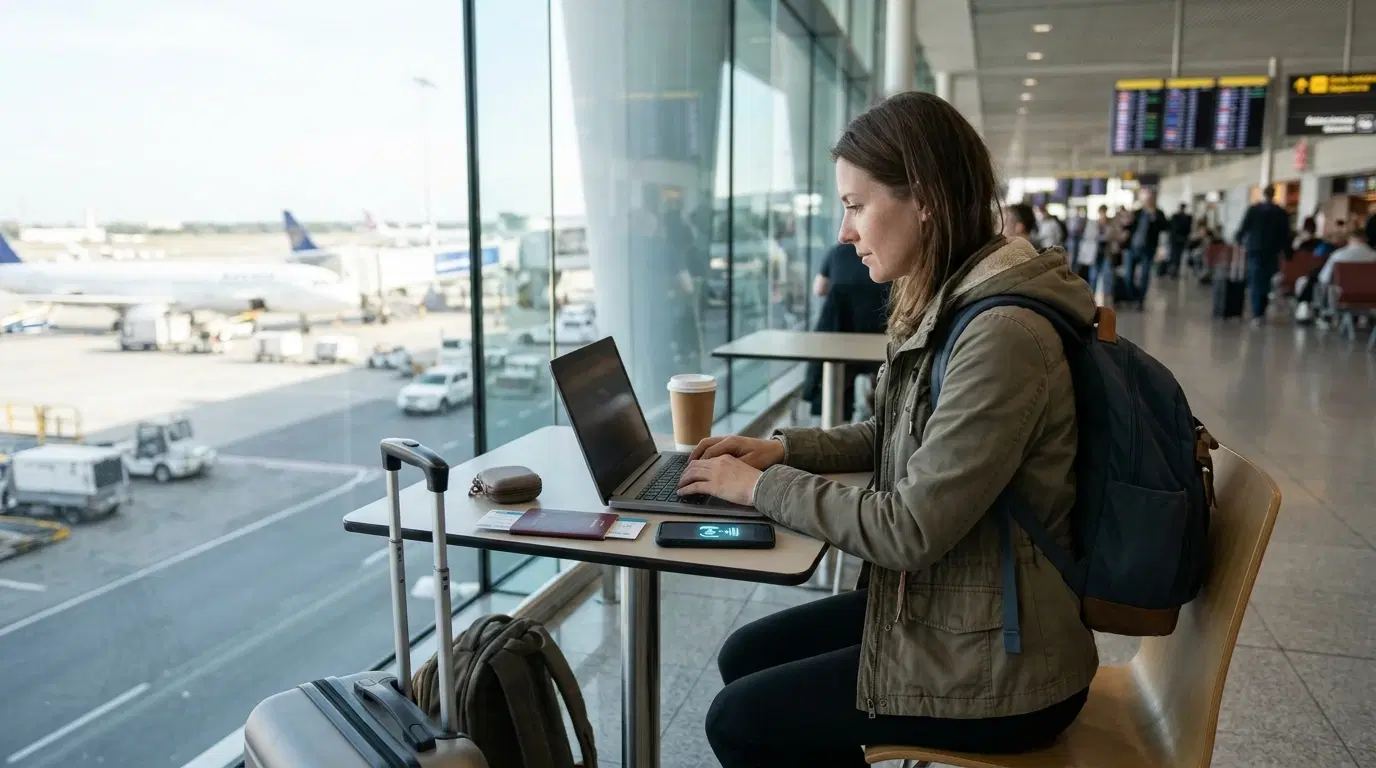
Yes, most of the time you can. eSIM hotspot tethering works the same way it does on a regular SIM card, because your phone shares whatever data line it is using at that moment. The real question is what your plan allows. Some travel eSIMs let you share freely. Others cap the shared data, slow it down, or switch the feature off completely. This guide explains how to check before you buy, how to turn the hotspot on with an iPhone or an Android phone, how much data sharing really burns, and what to do when the option refuses to show up. You will also find tips for the busiest moment of any trip, the first hour after landing.
What eSIM Hotspot Tethering Really Means
Tethering means sharing your phone's mobile data with another device. A laptop, a tablet, a camera or a friend's phone connects to your phone, and your phone passes the internet along. People call it a mobile hotspot, a personal hotspot or tethering. All three names describe one feature.
An eSIM is only the way your phone connects to a mobile network. It is a digital profile stored inside the phone instead of a plastic card. Tethering lives in the phone's operating system and has nothing to do with the type of SIM. When the eSIM is the active data line, your phone can share it, provided the plan permits it.
One point confuses many travelers. Sharing data and sharing the eSIM are two different things. A travel eSIM installs on a single device. You cannot copy it to your partner's phone after installation, and most providers do not allow transfers. What you can share is the data allowance, and the hotspot is the tool for that job.
Does Your Travel eSIM Allow Tethering?
Often it does. Never assume it, though. Providers write their own rules, and two plans by one company can follow different rules. Here are the situations you may meet.
The first is full support. The hotspot works the way it would on a home plan, and shared data simply comes out of your allowance. The second is support with a limit. You may get a daily or total cap on shared data, or a maximum number of connected devices. The third is reduced speed. Tethering works, and the provider slows it down once you start sharing. The fourth is a full block. The phone browses fine on its own, and the hotspot switch is grayed out or the connected laptop never loads a page.
Plans marketed with unlimited data often carry the tightest tethering rules, since shared use can eat huge amounts of bandwidth. Providers can also spot traffic that comes off a tethered device, which means a quiet workaround rarely lasts.
Transpovia is a ground transportation marketplace for airport transfers and private rides, and its eSIM page lists a travel eSIM with hotspot support that you can compare while you plan your arrival. Read the plan terms on any page before you pay, because details differ between plans and destinations.
Where should you look? Open the plan page and scan the fine print and the FAQ. Wording that says "hotspot allowed" or "tethering supported" is a good sign. Wording that says "phone use only" or "tethering not allowed" tells you to pick another plan. If the text is vague, send the provider a short message and ask directly. A clear answer takes a minute and saves a bad surprise at a hotel desk.
What You Need Before You Start
A few basics decide if the hotspot will work. Check them at home, where you have good WiFi and plenty of time to fix problems.
Your phone must support eSIM, and it must be unlocked by its original carrier. A locked phone will reject a new eSIM profile. Your phone must also offer a hotspot feature, which nearly every current iPhone, Pixel and Galaxy does.
Install the eSIM before you leave if the provider allows it. Many plans start counting days only when the phone first connects to a network at your destination. Installing early costs nothing. Keep the QR code or the install details somewhere safe in case you need to reinstall.
If your phone holds two lines, which is common when you keep your home number active, choose the travel eSIM for mobile data. The hotspot shares the line that carries data. If your home line is selected, the hotspot will use that plan and could trigger roaming fees. Many travel eSIMs also ask you to switch on data roaming for the eSIM line. That setting only lets the phone use a partner network abroad. Your home line stays safe when you keep its own data roaming turned off.
Some plans also need an APN, the network name that tells the phone how to reach the internet. The provider usually lists it in the install guide. If the hotspot works poorly later, a missing APN is one of the first things to check.
How to Turn On a Hotspot on an iPhone
The steps take less than a minute once the eSIM has a working data connection.
-
Open Settings and confirm that Mobile Data or Cellular uses your travel eSIM.
-
Tap Personal Hotspot.
-
Switch on Allow Others to Join.
-
Check the WiFi password on that screen and change it to something strong if you wish.
-
On the other device, pick your iPhone in the list of WiFi networks and enter the password.
If the Personal Hotspot menu is missing, wait a minute after the eSIM connects and check again. Some plans only reveal the option after you enter the APN details in the cellular data settings.
How to Turn On a Hotspot on an Android Phone
Menu names change between brands, and the path looks similar everywhere.
-
Open Settings and go to Network and Internet, or Connections on some Samsung phones.
-
Tap Hotspot and Tethering, or Mobile Hotspot and Tethering.
-
Choose WiFi Hotspot and switch it on.
-
Open the hotspot settings to see or change the network name and password.
-
Connect your other device in its WiFi list.
Before all of that, open the SIM manager and confirm your travel eSIM is the line for mobile data. On a dual SIM phone the hotspot follows that choice. If the toggle is grayed out, the plan or the phone may be blocking tethering, and the plan details are the next place to look.
WiFi, USB or Bluetooth for Sharing
You have three ways to share, and each one suits a different situation.
WiFi hotspot is the easiest. It connects several devices at once and needs no cable. It also drains the battery fastest and heats the phone, especially when it stays on for hours.
USB tethering uses a cable between the phone and a laptop. It tends to be steadier, it charges the phone while you work, and it keeps your connection off the open air. For a single laptop in a hotel lobby or a train seat, it is often the best choice.
Bluetooth tethering uses less power than WiFi. It runs slower, and connections can drop, which suits light jobs, for example checking messages on a tablet.
If your hotspot feels slow, try the 2.4 GHz band in the hotspot settings. It reaches farther and handles walls better than the 5 GHz band, which is faster at short range. Moving the phone closer to the connected device also helps more than most people expect.
How Much Data Does Sharing Use?
Tethering draws on the same allowance that covers your own browsing. Most plans have no separate meter, which means your balance can drop quickly once a laptop joins in.
Laptops behave differently than phones. They download system updates, sync cloud folders, back up photos and load full desktop versions of websites, often without asking. A single large update can eat a big share of a small plan. Video calls and streaming add up fast too.
A few habits protect your allowance. Turn off automatic updates and cloud sync on the laptop before you connect. Set the hotspot to a metered connection in the laptop's network settings, which tells the system to hold back large background downloads. Lower video quality in streaming apps, and download maps, playlists and shows over home WiFi before you fly. Check your remaining balance in the provider's app after the first session, and you will learn how fast your devices really consume data.
When several people need to be online all day, a bigger plan usually costs less than running out and buying a top up in the middle of a trip. Think about who needs data for work and who only needs it for maps and messages, and size the plan around the heaviest user.
Keeping Your Hotspot Safe
A hotspot is a small WiFi network that you run yourself, and it deserves the same care you give a home router.
Use WPA2 or WPA3 security and a long, unique password. Never leave the hotspot open, since anyone nearby could join and spend your data. Change the default network name if it shows your full name. Turn the hotspot off when you finish, which also saves battery. Look at the list of connected devices now and then and remove any you do not recognize.
On the laptop, a VPN adds a layer of protection when you handle work files or banking. A private hotspot already beats a public cafe network for safety.
Fixing a Hotspot That Will Not Work
Most problems come down to a short list of causes. Go through them in order.
First, confirm the eSIM line is active and the phone has signal. If the phone cannot load a page itself, the hotspot cannot help anyone else. Second, check that mobile data belongs to the travel eSIM and not to your home line. Third, switch airplane mode on, wait ten seconds and switch it off. That forces a fresh network connection. Fourth, restart the phone. Fifth, review the APN and the data roaming setting for the eSIM line.
If the hotspot connects and pages will not load, the plan may block tethered traffic. Your phone shows an internet connection while the laptop gets none. The plan terms will confirm it. At that point, contact the provider and ask if tethering is supported on your exact plan and country.
If the hotspot is slow, remember that some providers lower speed during tethering. Local network congestion matters too. A crowded airport or stadium can slow everything, tethered or not.
Sharing Data on Arrival Day
The first hour after landing is where a hotspot proves its value. Travelers use it to check in online on a laptop, send documents to a hotel, share a map with a travel partner, or message a driver while the group waits at the curb.
Plan for the busy moments. Switch the hotspot on before you leave the terminal, since signal can be weak inside parking structures and tunnels. Keep a power bank within reach, because sharing runs the battery down faster than normal use. Tell your companions to connect only what they need.
"We landed at midnight, my phone was the only one with a plan, and sharing it with my husband's laptop saved our check in. It took two minutes at the curb while we waited for our driver."
When you book an airport transfer, save the driver's contact details and the pickup instructions offline. A hotspot should be a backup for your plans and never the only way to find your ride.
FAQs
Can I use my travel eSIM for a hotspot?
Usually yes. Hotspot is a phone feature, and it can share whichever line carries your data. The deciding factor is the plan. Some providers allow it freely, some limit it and some block it. Read the plan terms before you buy.
Does hotspot use more data than normal browsing?
Yes. Your own use and the connected devices' use come out of the same allowance. Laptops tend to use the most, mostly through updates, cloud sync and video.
Why is the hotspot option grayed out or missing?
The plan or the phone is restricting tethering, or the eSIM is not the active data line. Check the line selection, the APN and the plan details. If everything looks right, ask the provider to confirm tethering support.
Can I share the eSIM itself with another phone?
No. A travel eSIM installs on one device, and transfers are usually not allowed. You can share the data through a hotspot, or you can buy a second eSIM for the other person.
How many devices can connect at once?
The phone can often handle several, and some providers set their own limit. More devices also drain the battery and spread the speed thinner. Connect only what you need.
Is a hotspot safe to use?
A hotspot protected by WPA2 or WPA3 and a strong password is generally safer than a public WiFi network. Turn it off when you finish and check the list of connected devices.
Conclusion
eSIM hotspot tethering works well for travelers when the plan allows it, and a short check before you buy removes most of the risk. Read the terms, set the eSIM for mobile data, pick WiFi or USB to suit the job, and watch your balance after the first session. A strong password and a power bank cover the rest.
Before your next trip, line up your connection and your ride together. Transpovia helps you book an airport transfer or a private ride ahead of time, which means you land with your phone ready and a driver waiting.


